Search and relevance

Synonyms

Let different words find the same products, with equivalent and one-way rules, bulk import and export in the Solr format, and no reindex.

What synonyms do

Shoppers do not use your catalog's words. One types "bubblewrap", another "air cushion", and the product title says "bubble wrap". A synonym rule tells the search that these words mean the same thing, so each of them finds the products.

Synonyms belong to an index and apply to every search profile of it. They work at search time. A saved change applies from the next search on, with no reindex and no upload.

Add a synonym rule

Only organization owners and admins can add, change and delete synonyms.

  1. Open the index and click Synonyms, then Add rule.
  2. Under Rule type, pick Equivalent or One way. See Rule types.
  3. For an equivalent rule, type at least two Terms. For a one-way rule, fill in When shoppers search and Also find. Press Enter or a comma after each term.
  4. Read the sentence under the fields, which says what the rule will do, and click Save rule.

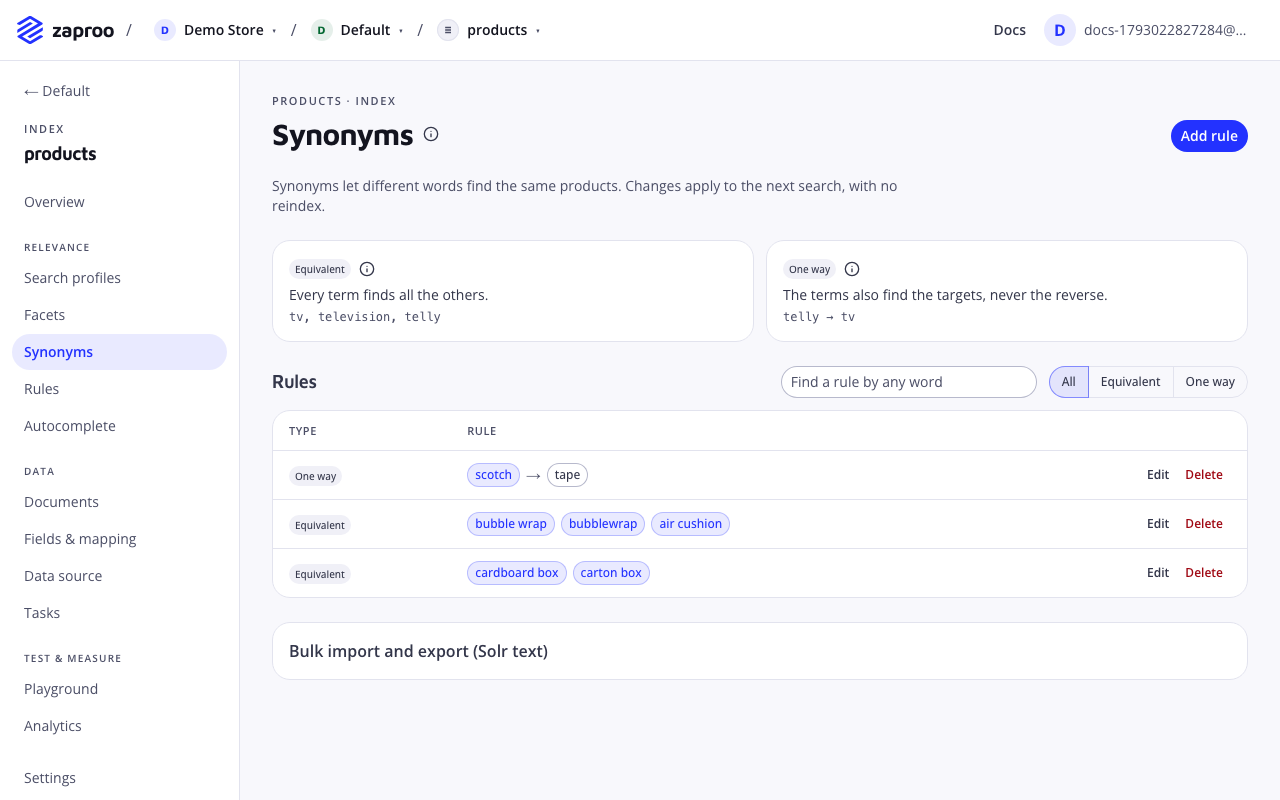
The Synonyms page with an explanation of equivalent and one way rules, a list of rules such as scotch to tape and bubble wrap with bubblewrap and air cushion, and a bulk import and export sectionSynonym rules of both types

The Rules table lists every rule. Find a rule by any word searches the terms, and All, Equivalent and One way filter by type. Edit on a row opens the same form. Delete removes the rule at once, without asking.

To check a rule, search for one of its terms in the playground.

Rule types

Equivalent

EQUIVALENTType rule typeValues 2 to 100 terms

What it does

Every term finds all the others. A search for any term also searches for each of the other terms. In the cabinet this type is called Equivalent.

{ "type": "EQUIVALENT", "terms": ["bubble wrap", "bubblewrap", "air cushion"] }

Best practices and common mistakes

  • Use it for true synonyms and spelling variants: "bubble wrap, bubblewrap".
  • Keep each rule to one meaning. A term that sits in two equivalent rules joins two groups that may not mean the same thing.

One way

ONE_WAYType rule typeValues 1 to 100 terms and 1 to 100 targets

What it does

The terms also find the targets, never the reverse. In the cabinet this type is called One way, and its fields are When shoppers search (terms) and Also find (target).

{ "type": "ONE_WAY", "terms": ["mailer"], "target": ["shipping box"] }

Best practices and common mistakes

  • Use it from a specific word to a broader one. "mailer" may show other shipping boxes, but a search for "shipping box" should not only find mailers.
  • It also helps with brand names people use for the whole category, such as "scotch" for tape.

How a search uses them

The search reads the query word by word, left to right. Where words match a term of a rule, it adds a variant of the query with that term swapped for a synonym. "large bubblewrap" becomes three searches at once: "large bubblewrap", "large bubble wrap" and "large air cushion". A product that matches any of them is a result.

  • The words the shopper typed rank first. Variants count slightly less (0.9 against 1), so a product with the shopper's own word tends to rank above one that only has the synonym.
  • Terms can have several words, such as "shipping box". Where two terms overlap, the longer one wins.
  • A query gets at most 8 variants, the original included. Each variant swaps one term. A variant never swaps two terms at once.
  • Matching ignores capital letters. It does not ignore accents or punctuation: "tape," with a comma does not match the term "tape".
  • Ranking rules see the variants too, so a rule for "tape" also fires for "scotch".

Term rules

  • A term is 1 to 100 characters, with spaces around it trimmed.
  • A term cannot contain ,, => or a line break, and cannot start with #. Those characters are syntax in the Solr format.
  • The terms of one side must be distinct, ignoring capital letters and extra spaces.
  • An index holds up to 10,000 rules. Above that a create or an import answers 409 SYNONYM_LIMIT_REACHED.

Manage rules over the API

The cabinet uses these routes. Call them to manage synonyms from a script.

GET/v1/projects/:projectId/indices/:indexId/synonymsProject member or any secret keyPOST/v1/projects/:projectId/indices/:indexId/synonymsProject admin or a full-access secret keyPUT/v1/projects/:projectId/indices/:indexId/synonyms/:synonymIdProject admin or a full-access secret keyDELETE/v1/projects/:projectId/indices/:indexId/synonyms/:synonymIdProject admin or a full-access secret key

GET lists rules page by page. It takes limit (1 to 100, default 25), cursor (the nextCursor of the previous page), q (any part of a term or target, ignoring case) and type (EQUIVALENT or ONE_WAY). PUT replaces the rule.

Import and export

The bulk format is the Solr synonyms text that Elasticsearch, OpenSearch and other search services also read. One rule per line:

# Equivalent: every term finds the others
bubble wrap, bubblewrap, air cushion
carton, cardboard box
# One way: the left side also finds the right side
scotch => tape
mailer, mailing box => shipping box

Blank lines and lines starting with # are skipped. A line with => is a one-way rule, any other line is an equivalent rule.

In the cabinet

  1. On the Synonyms page, open Bulk import and export (Solr text) under the table.
  2. Paste the rules into the text box, one per line.
  3. Pick Append to add them to the existing rules, or Replace all rules.
  4. Click Import. The line under the buttons counts the rules imported, deleted and in total.

To export, click Load export into the box. It fills the text box with the current rules, ready to copy.

With the API

POST/v1/projects/:projectId/indices/:indexId/synonyms/importProject admin or a full-access secret keyGET/v1/projects/:projectId/indices/:indexId/synonyms/exportProject member or any secret key

The import body is {"text": "...", "mode": "append"}, with up to 2,000,000 characters of text.

  • append (the default) adds the imported rules to the existing ones.
  • replace deletes every existing rule and stores the imported ones in their place, in one step. Searches see either the old set or the new one, never a mix.

The answer counts what happened: {"imported": 4, "deleted": 0, "total": 4}. If a line is not a valid rule, nothing is imported, and the API answers 400 SYNONYM_PARSE_FAILED with the line number in details.

The export answers text/plain in the same format, one rule per line, so an export imported with replace gives back the same rules.

curl https://api.search.zaproo.cloud/v1/projects/$PROJECT_ID/indices/$INDEX_ID/synonyms/export \
  -H "Authorization: Bearer $ZS_KEY" > synonyms.txt

Common mistakes

  • A synonym seems to do nothing. Check that the target word is in a searched field of the profile. A synonym only adds words to the query; it cannot find a product whose searched fields hold none of them.
  • Using equivalent rules for related, not equal, words. "carton, cardboard box" is fine. "tape, tape dispenser" makes a search for tape show dispensers. Keep equivalent rules for words that mean the same thing, and use one way where only one direction holds.
  • Adding misspellings. With typo tolerance on, "cardbord" already finds "cardboard". Add a synonym for a different word, not for a typo.
  • Importing with replace by accident. Replace deletes the rules that are not in the text. Export first and keep the file.