Projects
What a project is
A project groups the indices and the API keys of one shop or one environment. It is also the boundary for keys. A key of one project can never see the indices of another. Every organization starts with one project called Default.
Use one project per environment, for example Shop staging and Shop production. A script that runs with the staging key then cannot change the production catalog by mistake. Use one project per shop when one team runs several shops.
All projects of an organization share its plan. Documents, searches and indices count against the plan across all projects together.
See your projects
Open your organization and click Projects in the sidebar. The page shows one card per project with its number of indices and documents and the names of its indices. Click a card to open the project. The breadcrumb at the top of the cabinet also has a project menu, so you can switch projects from any page.
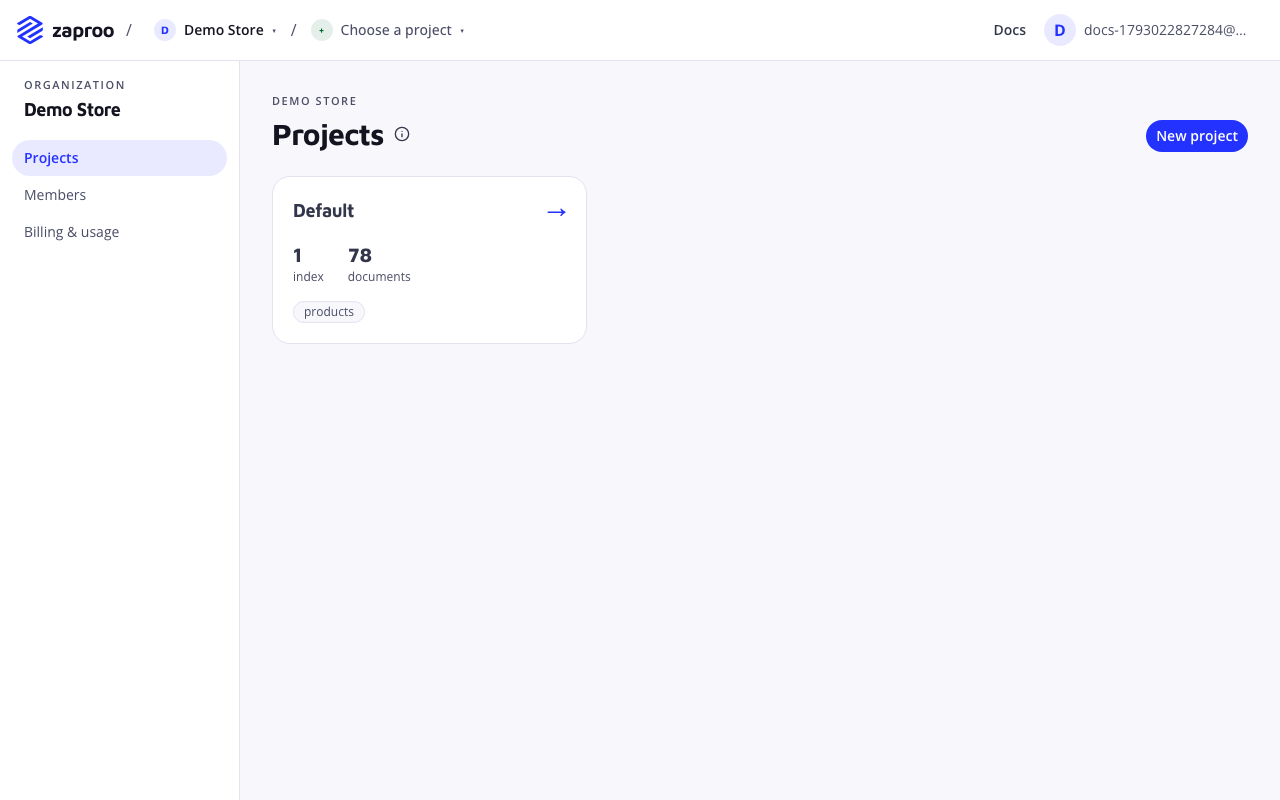
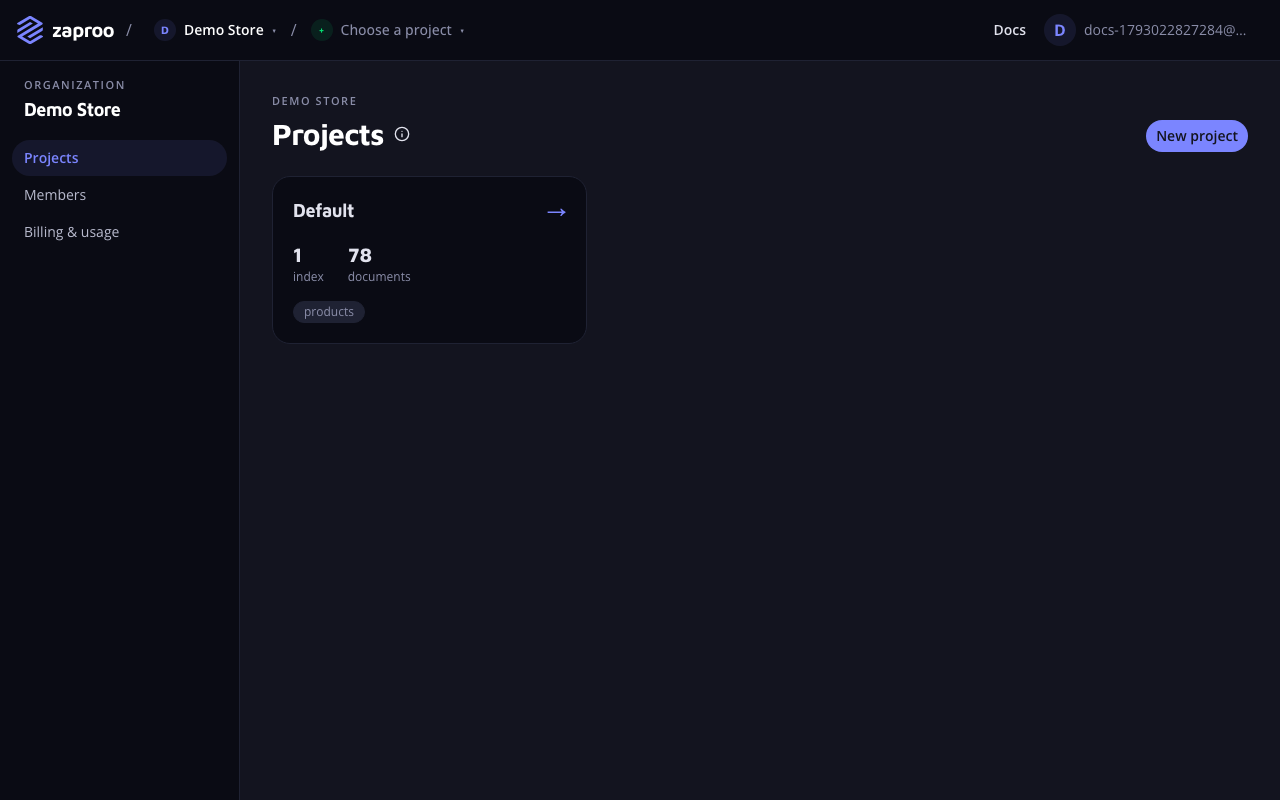 Each project card shows its indices and documents
The project id is part of the URL, /app/p/<project id>/indices, and the REST routes take the same id. The project's Settings page shows it under Project ID with a Copy button, for a shop plugin or any other integration that asks for it.
With the API:
GET/v1/orgs/:orgId/projectsAny member of the organizationGET/v1/projects/:projectIdAny member of the organization, or a secret key of the projectA project of an organization you do not belong to answers 404 PROJECT_NOT_FOUND, the same as one that does not exist. A secret key of another project gets the same answer.
Create a project
On Projects, click New project. Enter a Name of 1 to 100 characters and click Create project. The project menu in the breadcrumb has a + New project entry that opens the same form.
Creating projects needs the admin or owner role. Two projects may have the same name, so pick names that tell them apart.
With the API:
POST/v1/orgs/:orgId/projectsAdmin or owner of the organizationcurl -X POST https://api.search.zaproo.cloud/v1/orgs/$ORG_ID/projects \
-H "Authorization: Bearer $ACCESS_TOKEN" -H "Content-Type: application/json" \
-d '{"name": "Shop production"}'
The answer is the new project with its id.
A new project has no indices and no API keys. Create them next: see Indices and API keys, or follow the Quickstart from its third step.
Rename a project
Open the project and click Settings in the sidebar. Change the Project name and click Save. The new name shows at once in the breadcrumb, the sidebar and the project switcher. The id stays the same, so keys, integrations and REST calls keep working. Renaming needs the admin or owner role, and the audit log records it as project.rename.
With the API:
PUT/v1/projects/:projectIdAdmin or owner of the organizationcurl -X PUT https://api.search.zaproo.cloud/v1/projects/$PROJECT_ID \
-H "Authorization: Bearer $ACCESS_TOKEN" -H "Content-Type: application/json" \
-d '{"name": "Shop production"}'
The answer is the renamed project. A secret key cannot rename its project; it gets 401.
Analytics settings
The project's Settings page has an analytics section with two settings and its own Save button. Both need the admin or owner role.
Excluded IP addresses takes one IPv4 or IPv6 address or CIDR range per line, up to 50. Searches and events from these addresses are logged but left out of the reports, so your office, test scripts and staging server do not pollute the numbers. The change reaches every index of the project with the next search. See What counts as real traffic.
Email a weekly digest to owners and admins is on by default. Every Monday the owners and admins get last week's numbers against the week before, the top opportunities and the top products for this project. The same switch turns off the alerts about sudden drops. See Weekly digest and alerts.
With the API, the rename route takes these settings too:
curl -X PUT https://api.search.zaproo.cloud/v1/projects/$PROJECT_ID \
  -H "Authorization: Bearer $ACCESS_TOKEN" -H "Content-Type: application/json" \
  -d '{"analyticsExcludedIps": ["203.0.113.7", "198.51.100.0/24"], "analyticsDigest": false}'
The body may hold any of name, analyticsExcludedIps and analyticsDigest. The answer is the project with the new values. An entry that is not an address or a CIDR range answers 400 VALIDATION_FAILED.
Delete a project
Deleting a project removes every index in it, with the documents, mapping, search profiles, synonyms, rules, autocomplete, data sources and search analytics, and revokes every API key of the project. Search on your site and every shop plugin or script that uses those keys stop at once. It can't be undone.
Open the project's Settings page and click Delete project. The dialog lists the indices, documents and active keys that will go. Tick I understand that this can't be undone, click Continue, then type the project name exactly and click Delete this project. You land on the organization's project list.
Deleting needs the admin or owner role, and a staff member signed in as you can't do it. The audit log records it as project.delete.
With the API:
DELETE/v1/projects/:projectIdAdmin or owner of the organizationcurl -X DELETE https://api.search.zaproo.cloud/v1/projects/$PROJECT_ID \
-H "Authorization: Bearer $ACCESS_TOKEN" -H "Content-Type: application/json" \
-d '{"name": "Shop production"}'
The body repeats the project name, so a stray request can't delete a project. The answer is 204. A name that doesn't match exactly answers 400 PROJECT_NAME_MISMATCH and deletes nothing. A secret key gets 401.
What lives in a project
- Indices, each with its mapping, documents, search profiles, synonyms, ranking rules and autocomplete. See Indices.
- API keys that act on the project's indices. See API keys.
- Tasks, the history of document uploads and reindexing for every index of the project.
- The MCP connection page, with the command that connects an AI agent to the project. See MCP setup.
- The Settings page, with the project id, its name, the analytics settings and Delete project.
Common mistakes
- Testing on the production project. Create a staging project with its own keys and index, and copy settings over when they work.
- Using one secret key for every environment. A key belongs to one project. Create a key in each project, so you can revoke one without breaking the other.