Search and relevance

Ranking rules

Change the results for chosen searches. Put products first, hide them, lift or lower a brand, narrow the results or weigh fields differently, on a schedule and per profile.

What a rule is

A ranking rule changes the results of chosen searches. "When someone searches for tape, put these two rolls first." "During the Christmas sale, lift the brand Boxwell on every search." "When the search box opens, show the three bestsellers." A rule has a when (the searches it fires for) and a then (one or more actions).

Rules and profiles do different jobs:

  • A search profile sets how every search of one search box works: the fields, the typo tolerance, the facets and the sorts.
  • A rule changes a few searches, or every search for a while, without touching the profile. Merchandisers can add and remove rules for campaigns while the profile stays the same.

If a change should hold for every search, all the time, change the profile. If it is about particular words, particular listing pages or a date range, write a rule.

Rules belong to an index. They run on every profile of it unless you limit them to some profiles. A saved change applies from the next search on, with no reindex.

Create a rule

Only organization owners and admins can create and change rules. A rule's preview needs a search profile, so create one first.

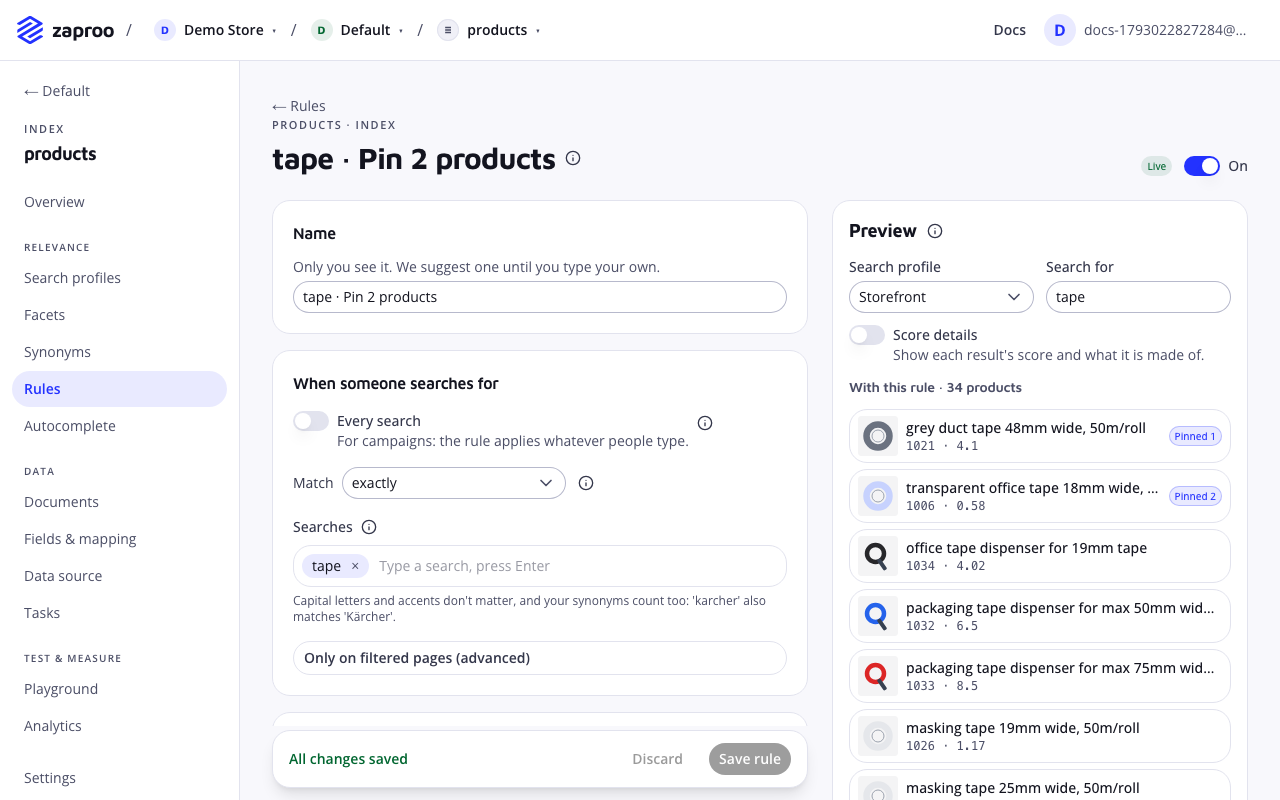
  1. Open the index and click Rules, then New rule.
  2. Pick a starting point from the templates. Start from scratch gives an empty rule.
  3. Give the rule a Name that says what it is for.
  4. Under When someone searches for, pick Chosen searches and type the Searches and how they Match. Or pick Every search or Empty search. See When it fires.
  5. Under Then, set the actions. Add an action adds another. See Actions.
  6. Under When it runs, pick the dates and the profiles. See When it runs.
  7. Check the Preview on the right, then click Save rule. The On switch at the top turns the rule on or off.

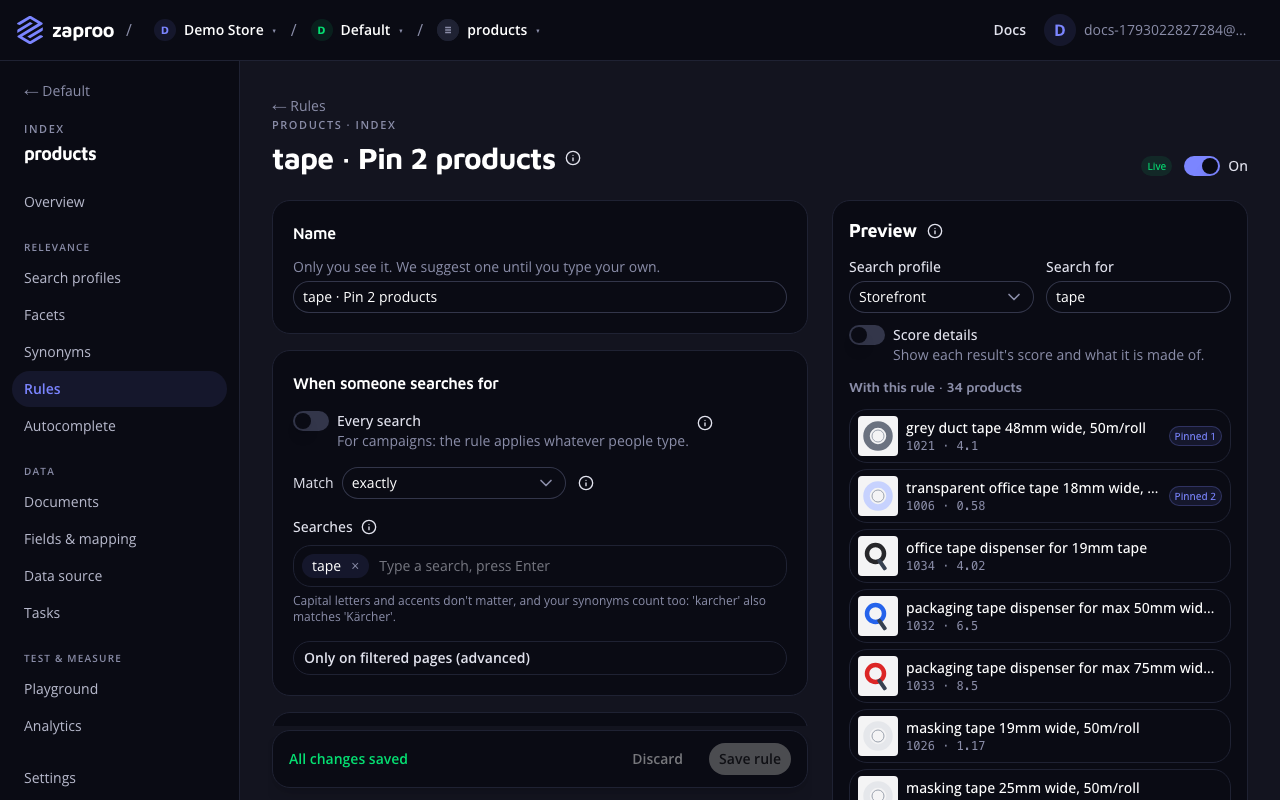
The rule editor for tape with a match of exactly, the search tape, and a preview where the two pinned products come firstThe rule editor with its live preview

Templates

New rule offers a starting point. Every template can be changed before you save.

TemplateWhat it sets up
Feature products for a searchPut chosen products first when people search for a word.
Promote a brand or categoryLift a brand or category higher in the results.
Push down productsMove a brand or category lower without hiding it.
Send a search to a categoryShow only one category for a search.
Hide products from a searchKeep chosen products out of the results for a search.
Campaign for every searchLift products on every search for a week. The dates start at the current hour.
Products for an empty searchPut chosen products first when the search box opens, before anything is typed. See Empty search.
Start from scratchAn empty rule: pick the searches and actions yourself.

The rules list

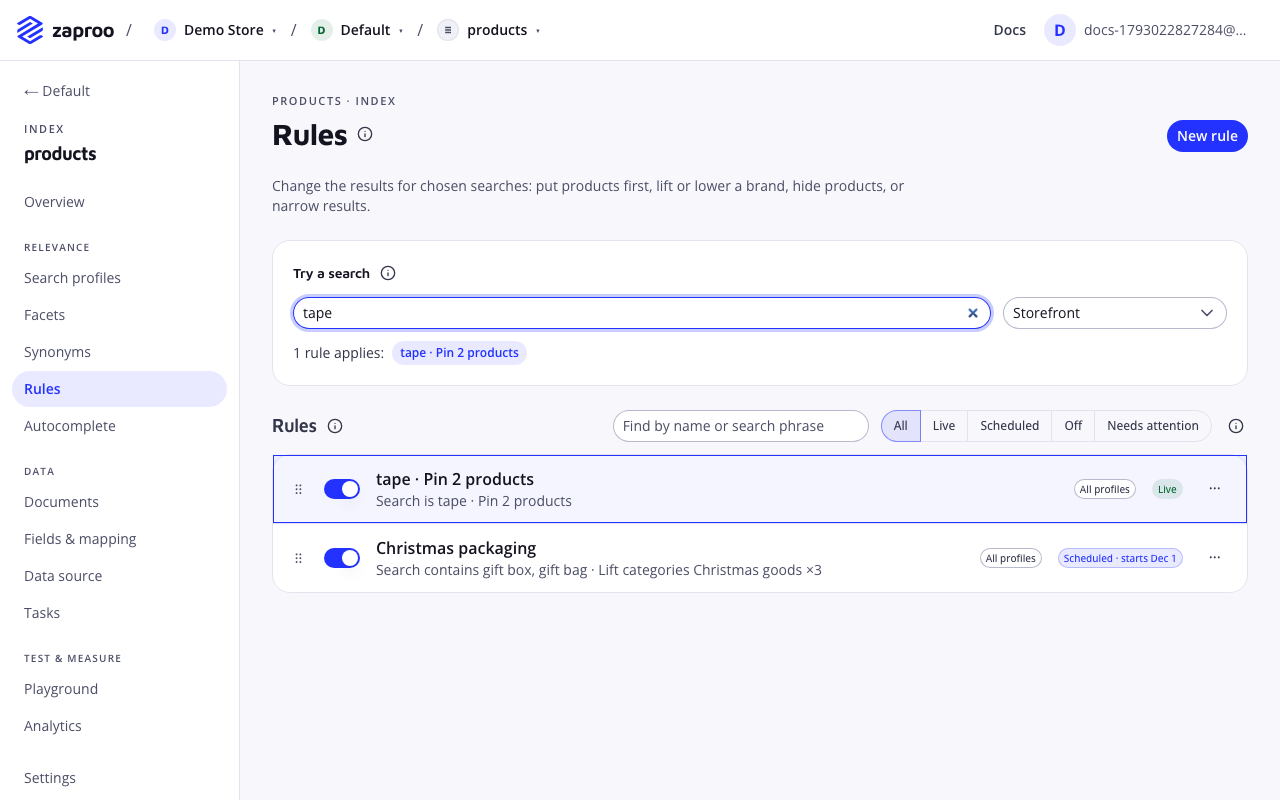
The Rules page lists the rules in the order they run. Each row reads as a sentence, such as "Search is tape · Pin 2 products · All profiles", with its status and an on/off switch.

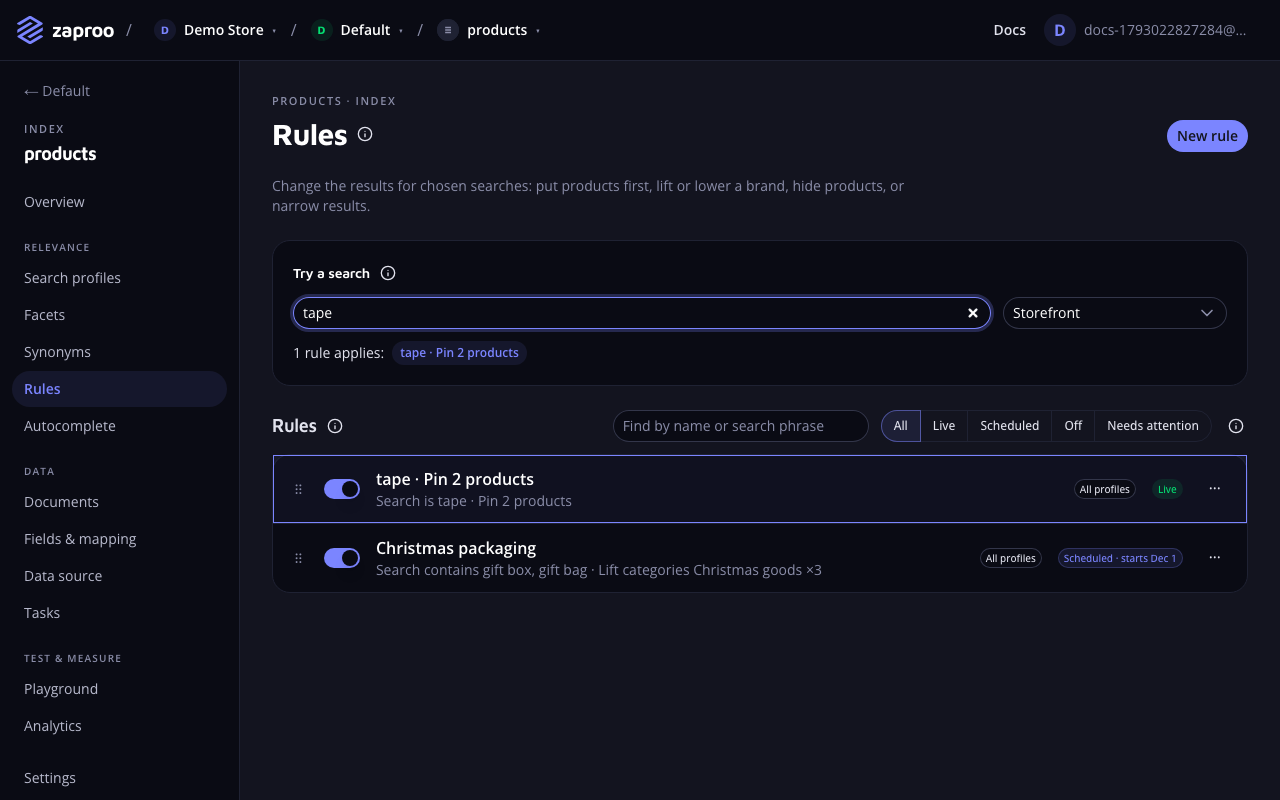
The Rules page with a try a search box showing that one rule applies to tape, and two rules: tape pin 2 products, live, and Christmas packaging, scheduledThe rules list, with a search to see which rules apply

  • Find by name or search phrase narrows the list, and the status buttons filter it by status.
  • Try a search shows which rules fire for a search you type, through the profile you pick, and links each one.
  • The row menu (⋯) has Edit, Duplicate, Move up, Move down and Delete. Delete asks you to confirm. See Order for moving rules.

When it fires

The editor's When someone searches for block holds the conditions. Pick one of three:

  • Chosen searches: the rule fires when the search matches one of its phrases, compared as set under Match.
  • Every search: the rule fires whatever the shopper types. See Every search.
  • Empty search: the rule fires only when nothing is typed and no filter is picked. See Empty search.

A rule with filtered pages also needs the request to carry those filters.

Searches

The phrases the rule fires for, up to 100 of 1 to 200 characters each. Any one of them is enough. Phrases and searches are compared after the same clean-up:

  • Capital letters and accents do not matter: "cafe" matches "Café".
  • Anything that is not a letter or a digit counts as a space, and repeated spaces count as one: "t-shirt" matches "t shirt".
  • Synonyms count too. A rule for "tape" also fires for "scotch" when a synonym links the two.

If the profile searched a corrected spelling after did you mean, rules match the corrected query.

Match

How a phrase is compared with the whole search. The cabinet calls the three options exactly, anything containing and anything starting with.

matchFires whenPhrase "bubble" fires forDoes not fire for
is (default)the search is the phrase"bubble", "Bubble!""bubble wrap", "bubblewrap"
containsthe phrase appears as whole words anywhere"bubble", "large bubble wrap""bubblewrap"
startsWiththe search begins with the phrase as whole words"bubble", "bubble wrap""large bubble wrap", "bubblewrap"

All three compare whole words. "bubble" never fires for "bubblewrap", because "bubblewrap" is a different word.

Over the API, match takes a fourth value, empty, for an empty-search rule. It compares no phrases, so the cabinet shows it as its own choice rather than in this list.

A rule with no phrases fires on every search, the empty query on a category page included. In the editor, pick Every search. Use it for campaigns, together with a schedule. To change only what a just-opened search box shows, use an empty-search rule instead.

An empty-search rule fires only when the search has no query and no filters. On a storefront, that is the moment the shopper clicks into the search box and the dropdown opens. Pin your bestsellers or new arrivals with it, and the dropdown has products in it before the shopper types a letter.

In the editor, pick Empty search, or start from the Products for an empty search template. The rule has no phrases and no filtered pages. Once the shopper types something or picks a filter, the rule stops firing and the usual results come back. A category page counts as filtered, so the rule leaves category pages alone too.

The rule only changes results. Your storefront still has to ask for them, with a search that has an empty query, when the search box gets focus. With the JavaScript SDK:

input.addEventListener('focus', async () => {
  if (input.value) return;
  const { items } = await zaprooSearch.search({ perPage: 6 });
  showDropdown(items);
});

Pins come first only when the results are sorted by relevance, which is the default. Without a pin or a boost, an empty search lists products by id. Over the API, write the condition as "when": {"match": "empty"}. You can show popular searches in the same dropdown: they come from autocomplete, which answers an empty query on its own.

Only on filtered pages

Under Only on filtered pages (advanced), a rule can require filters in the request. This is for brand or category listing pages. The rule fires only when the shopper's search is filtered like this.

  • A value or a list fires when the request filters that field with at least these values. A condition {"brand": "Boxwell"} holds for a request with {"brand": ["Boxwell", "Acme"]}.
  • A range, an exists check or category nodes must equal the request's filter exactly. Write the condition the way your storefront sends the filter.

Actions

The Then block holds 1 to 10 actions. Add an action offers the five kinds below.

Put products first

pinType actionValues 1 to 24 products

What it does

Chosen products lead the results, in your order. In the editor, pick them with the product search and drag them into order. Each pinned hit carries _pinned: true in the response.

{ "type": "pin", "ids": ["tape-48", "tape-50", "tape-dispenser"] }

A pinned product shows even when it does not match the search words. It still has to pass every filter: the profile's filters and exclusions, the rule filters, and the shopper's facet clicks.

Best practices and common mistakes

  • Pins only apply when results are ordered by relevance. See Pins, sorting and facets.
  • Pin few products. Shoppers read the first row; 3 to 6 pins usually beat 24.

Related

Hide products

hideType actionValues 1 to 500 products

What it does

Chosen products never show for these searches. Hiding beats pinning. A product that one rule hides and another pins stays hidden.

{ "type": "hide", "ids": ["tape-48-old"] }

Best practices and common mistakes

  • To hide a whole brand or category from one storefront for every search, an exclusion in the profile is simpler than a rule.

Lift or lower products

boostType actionValues factor 0.1 to 10

What it does

Moves a brand, a category or any product group up or down. The relevance of every product that matches the filters is multiplied by factor. Above 1 lifts, below 1 lowers.

The editor offers named steps and a custom value:

StepFactor
Lower a lot0.3
Lower0.6
Lift2
Lift a lot5
Customany value from 0.1 to 10
{ "type": "boost", "filters": { "brand": "Boxwell" }, "factor": 2 }

Best practices and common mistakes

  • A lift is not a pin. A lifted product that matches the search badly can still rank below a good match. Use a pin to put a product first for sure.
  • Several boosts multiply for a product that matches more than one, up to 100 times in total.
  • Boosts change relevance, so they have no effect when the shopper sorts by price or another field.

Show only

filterType action

What it does

Narrows the results to a brand, category or other group, like a profile filter. Only products that match show for these searches, and facet counts narrow with them.

{ "type": "filter", "filters": { "category": { "terms": ["Tapes>Packing tape"] } } }

Best practices and common mistakes

  • The "Send a search to a category" template uses this action. A search for "tape" can show only packing tape, even though "tape" also appears in the descriptions of tape dispensers.
  • Filters from several rules all apply. Two rules that show only different brands leave no results.

Search fields differently

fieldWeightsType actionValues weights 0 to 100

What it does

Gives a field more or less say in the ranking, or stops searching it, for these searches only. A weight replaces the profile's weight for that field. 0 means the field is not searched. In the editor, leave a field empty to keep the profile's weight.

{ "type": "fieldWeights", "weights": { "sku": 10, "description": 0 } }

Best practices and common mistakes

  • Useful when one word means two things: a search for "kraft" can weigh the material field up and the description down.
  • When two rules set a weight for the same field, the higher rule in the list wins.
  • Weights that would leave no field to search are ignored, and the profile's weights apply.

When it runs

Schedule

Always or Between two dates. A rule with dates is live from activeFrom, included, until activeUntil, not included. Leave one empty for no start or no end. The cabinet shows the times in your time zone; the API takes and returns ISO dates with a time zone, such as 2026-11-20T00:00:00Z. The end must be after the start.

Profiles

All profiles (the default) or Chosen profiles. A rule limited to chosen profiles fires only for searches through those profiles. Deleting a profile removes it from every rule. A rule that is left with no profile is switched off, so that it does not start firing on every profile.

Skip the rules below

With Skip the rules below when this one applies (stop), a firing rule ends the run. Rules lower in the list do not fire for that search.

Order

Rules run from the top of the list to the bottom. On the Rules page, drag a rule, or use Move up and Move down in its row menu (⋯). Clear the list's search and status filter to change the order. Order matters for three things: the order in which pins from several rules appear, which rule's field weight wins, and where a stop rule ends the run.

Status

Each rule shows one status:

StatusruleStatusMeaning
LiveliveOn, and firing for matching searches.
ScheduledscheduledOn, and its start date is still ahead.
EndedendedOn, but its end date has passed.
OffoffSwitched off.
Needs attentionattentionOn, but a field it uses no longer fits the mapping. Search skips the rule until you fix it.

A rule needs attention when the mapping changed after it was saved. For example, a boost filters on brand, and brand is no longer filterable or facetable. The rule's issues list says which field and why.

Preview and test

The editor's Preview runs a search through a profile you pick, with the draft rule, before you save it. Pick the Search profile and type under Search for. The preview shows the results with the rule and marks how each product moved compared with today's results: Pinned 1, ↑ 3, ↓ 2 or New. It also names other rules that fire for the same search. Until the rule is complete, it shows today's results.

To check saved rules, type a search under Try a search on the Rules page. It lists the rules that apply, and highlights them in the list. The playground shows the final results, with pinned products marked.

With the API, test a rule like this:

POST/v1/projects/:projectId/indices/:indexId/rules/testProject member or any secret key

The body is a search request plus profileId (the stored profile to search through) and an optional draft: {"id": <rule id or none>, "rule": <rule>}. The draft takes the place of the stored rule with that id, or runs last when it has no id. The answer has fired (the rules that fired, in order), results, and with a draft also baseline, the same search without the draft. Tests are not counted in Analytics.

curl -X POST https://api.search.zaproo.cloud/v1/projects/$PROJECT_ID/indices/$INDEX_ID/rules/test \
  -H "Authorization: Bearer $ZS_KEY" -H "Content-Type: application/json" \
  -d '{"profileId": "'$PROFILE_ID'", "q": "tape",
       "draft": {"rule": {"name": "Tape rolls first", "when": {"queries": ["tape"]},
                          "then": [{"type": "pin", "ids": ["tape-48", "tape-50"]}]}}}'

Pins, sorting and facets

Pins apply only when results are ordered by relevance:

  • The shopper sorts by a field. A sort such as price:asc puts relevance aside, and pins with it. A pinned product shows only if it matches the search, in its place in the price order, and carries no _pinned flag.
  • The profile has always-show-first clauses. Pins apply when, after the profile's pinnedSort clauses, the order is by relevance. With pinnedSort set to inStock:desc and the default sort _relevance, pins lead within each group. A pinned product that is out of stock comes after every product in stock.
  • The shopper clicks a facet. Pins pass through the same filters as every other product. A click on another brand removes a pinned product of a different brand from the results.

Pinned products count in the facets like any other result.

How several rules combine

Every rule that fires adds its actions:

  • Pins join in rule order, without duplicates, up to 24 in total.
  • Hidden products add up, and a hidden product is never pinned.
  • Boosts multiply for a product that matches several, up to 100 times in total.
  • Filters all apply.
  • For each field, the weight from the highest firing rule wins.

Limits

WhatLimit
Rules per index1,000 (409 RULE_LIMIT_REACHED above)
Phrases per rule100, each 1 to 200 characters
Actions per rule10
Pinned products per action, and per search24
Hidden products per action500
Boost factor0.1 to 10
Field weight0 to 100
Profiles per rule50
Rule name1 to 100 characters

Over the API and MCP

The cabinet uses these routes. Call them, or ask an AI agent, to manage rules from a script.

GET/v1/projects/:projectId/indices/:indexId/rulesProject member or any secret keyPOST/v1/projects/:projectId/indices/:indexId/rulesProject admin or a full-access secret keyGET/v1/projects/:projectId/indices/:indexId/rules/:ruleIdProject member or any secret keyPUT/v1/projects/:projectId/indices/:indexId/rules/:ruleIdProject admin or a full-access secret keyDELETE/v1/projects/:projectId/indices/:indexId/rules/:ruleIdProject admin or a full-access secret keyPUT/v1/projects/:projectId/indices/:indexId/rules/orderProject admin or a full-access secret key

POST adds the rule at the bottom of the list. PUT replaces the whole rule. PUT .../order takes {"ids": [...]} with every rule id of the index exactly once, in the new order, or answers 400 RULE_ORDER_MISMATCH. A rule that names a field the mapping does not allow for its use, or a profile of another index, answers 400 RULE_INVALID with one issue per problem.

curl -X POST https://api.search.zaproo.cloud/v1/projects/$PROJECT_ID/indices/$INDEX_ID/rules \
  -H "Authorization: Bearer $ZS_KEY" -H "Content-Type: application/json" \
  -d '{
    "name": "Christmas sale: Boxwell",
    "when": {"queries": []},
    "then": [{"type": "boost", "filters": {"brand": "Boxwell"}, "factor": 2}],
    "activeFrom": "2026-11-01T00:00:00Z",
    "activeUntil": "2026-11-15T00:00:00Z"
  }'

The fields of a rule, with their defaults: name, enabled (true), profiles ([], every profile), when with queries ([]), match ("is") and filters ({}), activeFrom and activeUntil (null), then, and stop (false). A stored rule also has id, position (0 runs first) and issues.

Common mistakes

  • A pin does not show. The shopper sorted by a field, the pinned product fails a filter, or another rule hides it. Type the search under Try a search to see which rules fire.
  • A rule fires too often. contains with a short phrase fires on every search with that word. Use is for one-word searches you want to steer.
  • A rule never fires on a category page. Its filtered-page condition uses another form than the storefront sends, such as a list where the storefront sends {"terms": [...]}.
  • The search box opens empty although an empty-search rule is live. The storefront sends no search on focus, or sends one with a filter. Send a search with an empty q and no filters when the box gets focus.
  • A campaign does not end. It has no end date. Set Between two dates, or switch it off when the campaign is over.