Quickstart
From account to first search
This guide sets up a working search in the cabinet, no code needed. It takes about fifteen minutes with a catalog file at hand. The screenshots come from a demo shop that sells packaging supplies. If the terms are new to you, read the Introduction first.
To script the setup instead, see With the API below. To have an AI agent do it, see With an AI agent.
Create an account
Open Create your account and enter your email, a password of at least 10 characters and your company name. You start on the Free plan, and no card is needed.
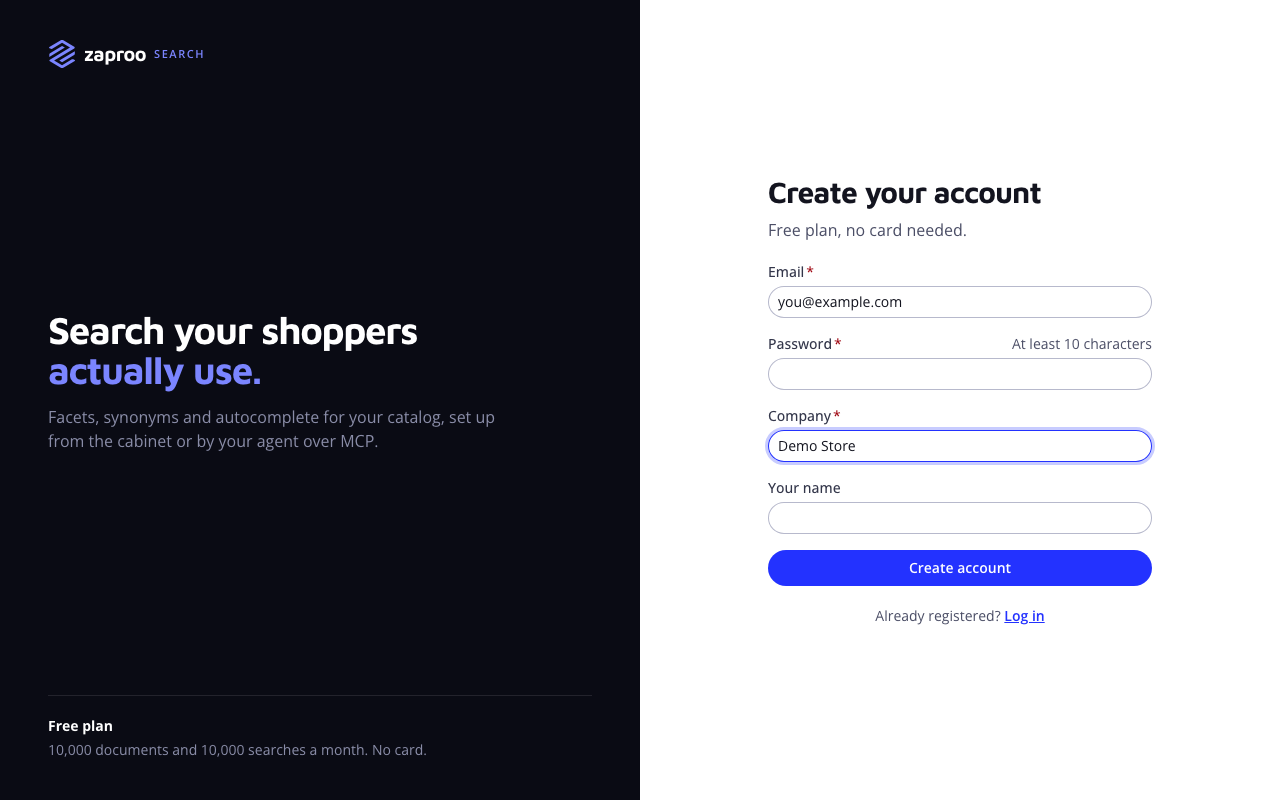
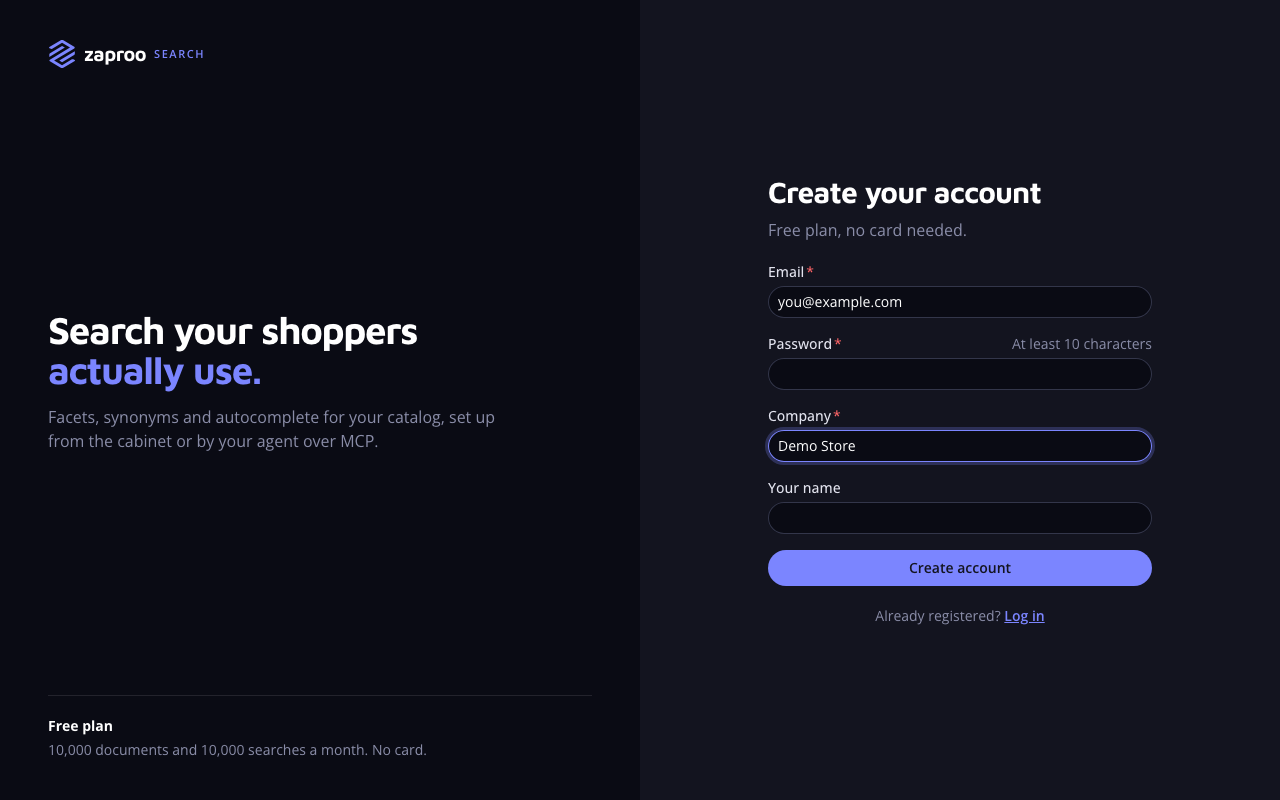 Registration takes an email, a password and a company name
Registering sets up three things for you:
- an organization named after your company, with you as its owner,
- a project called Default,
- the Free plan.
Zaproo then sends a verification email. Open the link in it within 24 hours. You can do everything below before that, except create API keys in the last step. See Verify your email.
Open your project
The cabinet opens on your organization's Projects page. Click the Default card.
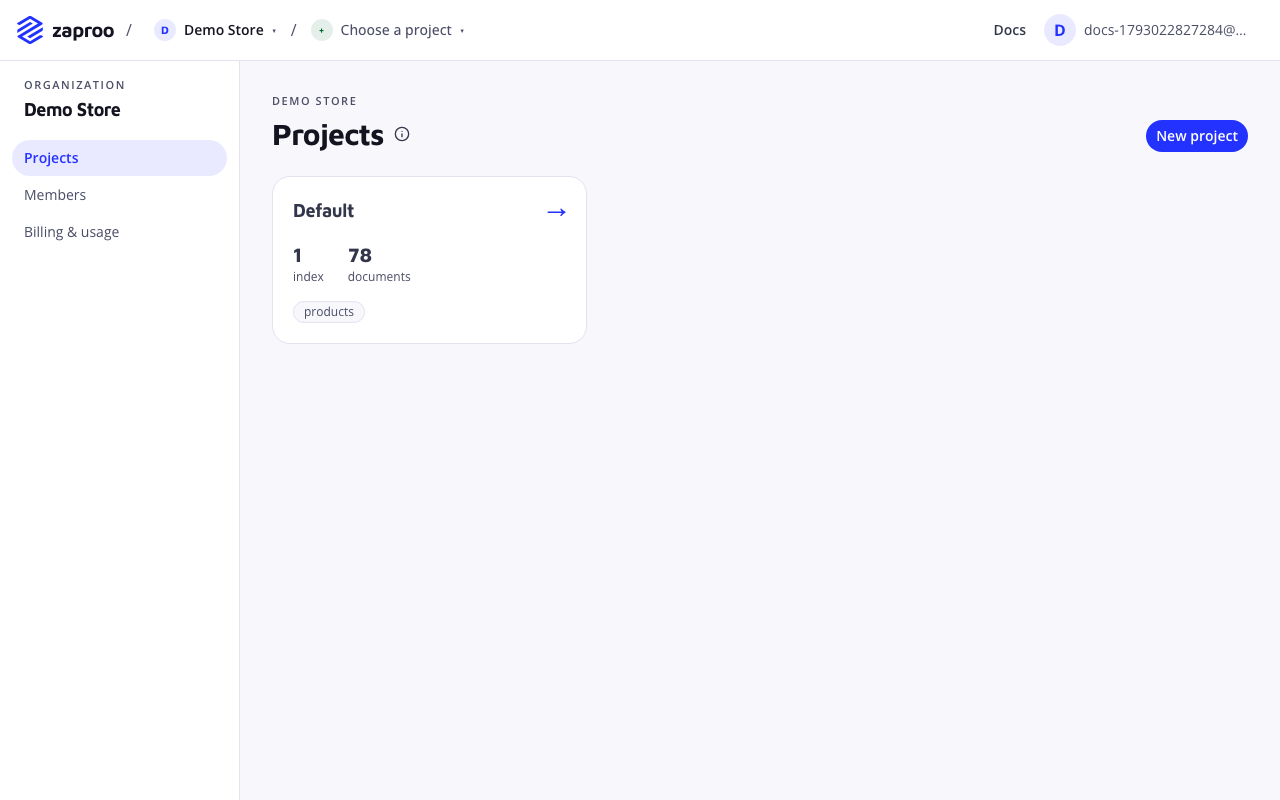
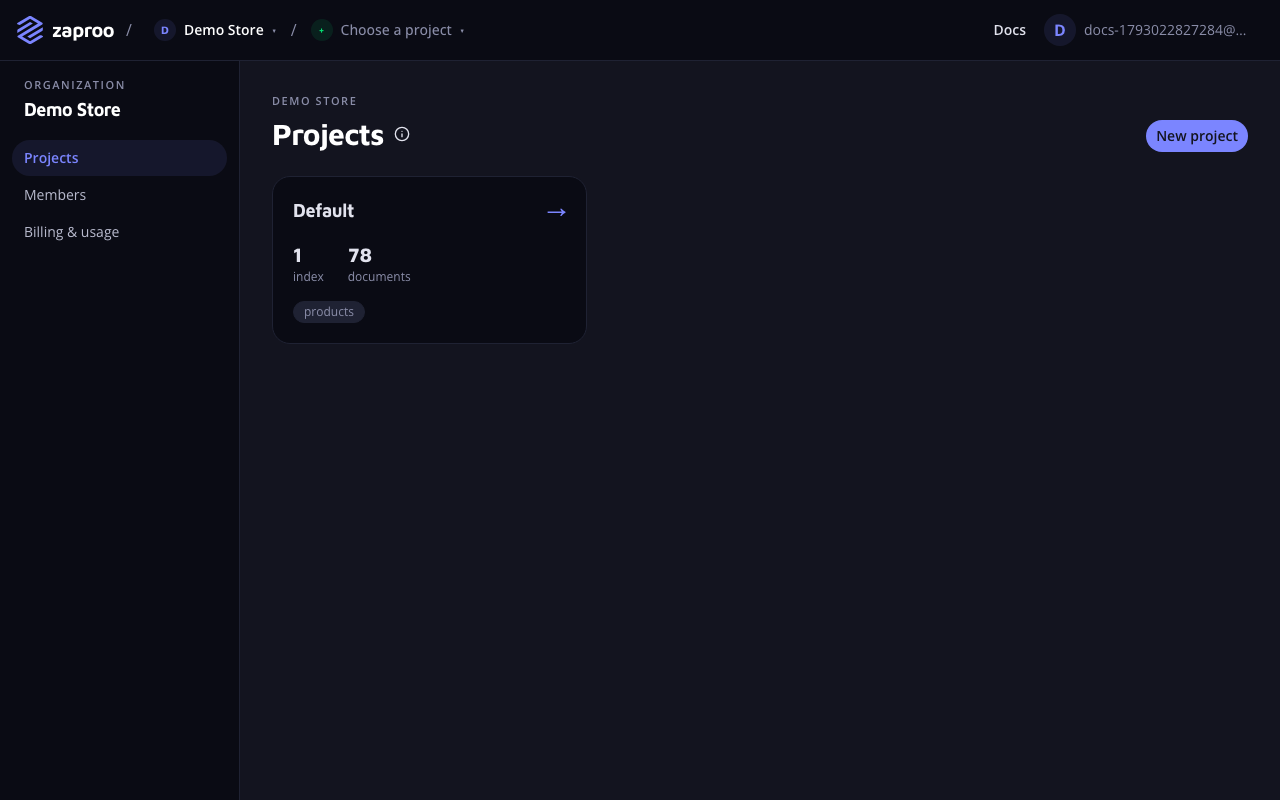 Each project card shows its indices and documents
One project can hold the search for one shop. Many teams add a second project for staging, so that test keys can never touch live data. See Projects.
Create an index
An index holds one catalog in one language. Open Indices in the project menu and click New index. Enter a name, for example products, pick the language your product texts are written in and click Create index.
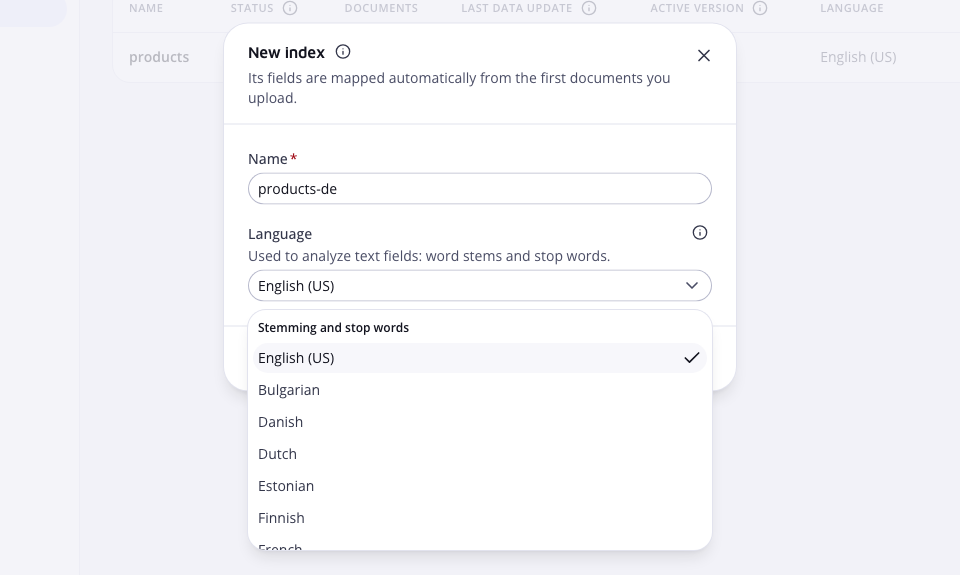
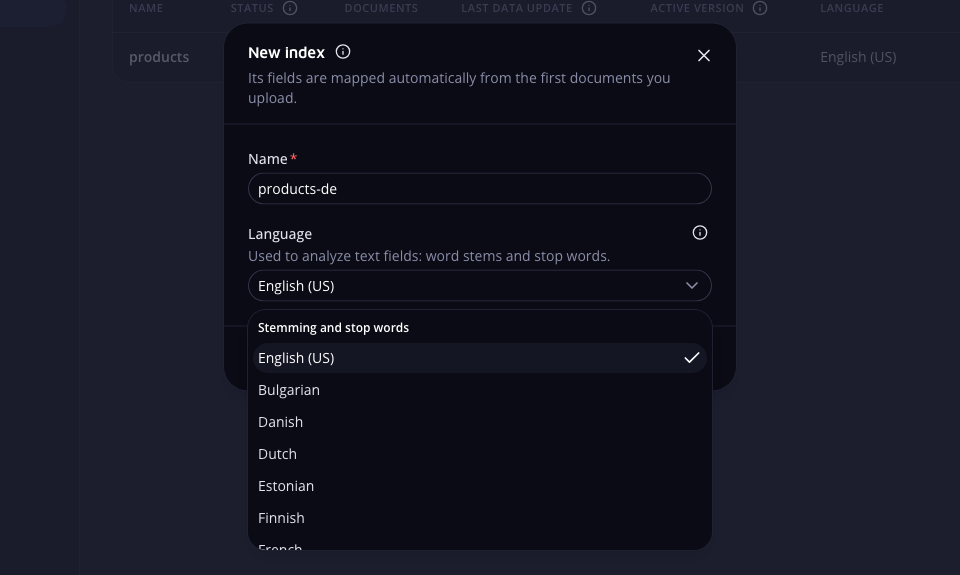 The language decides how words are matched, so pick the language of your product texts
The language sets how words are matched. With English, for example, a search for "boxes" also finds "box". You can change the language later, but that rebuilds the index. See Indices and languages.
The new index opens on its Overview. The Setup list there shows the four steps that follow, and ticks each one off when it is done.
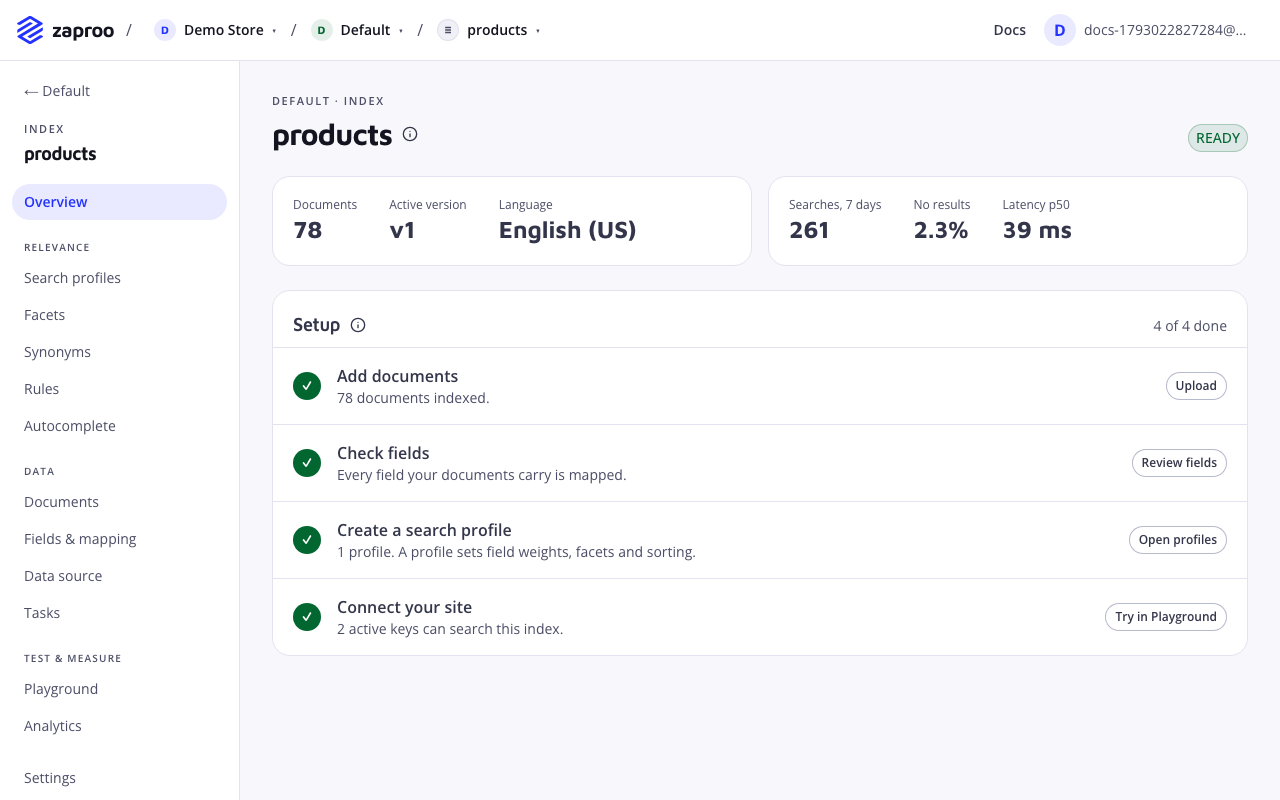
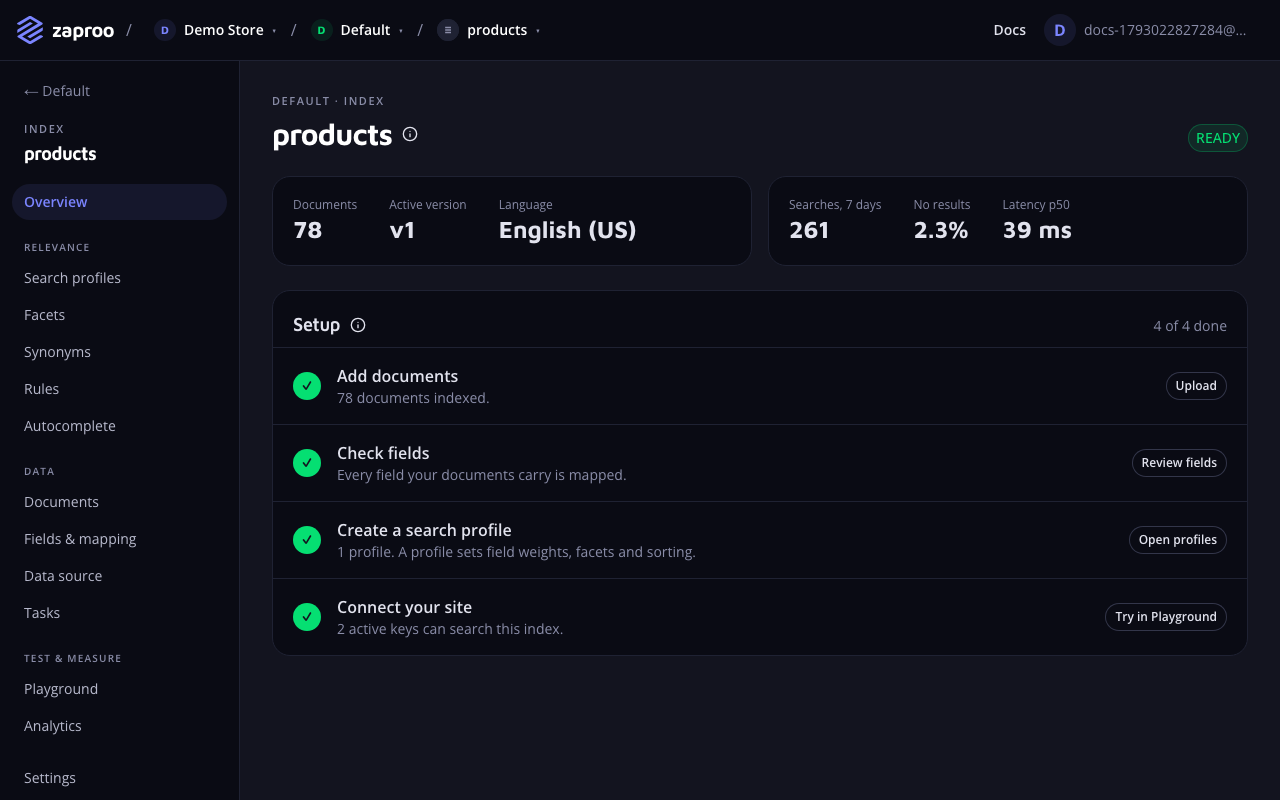 The Setup checklist on the index overview tracks the next steps
Upload your products
Open Documents. Drop a .json file on Upload documents, or click the area to pick a file.
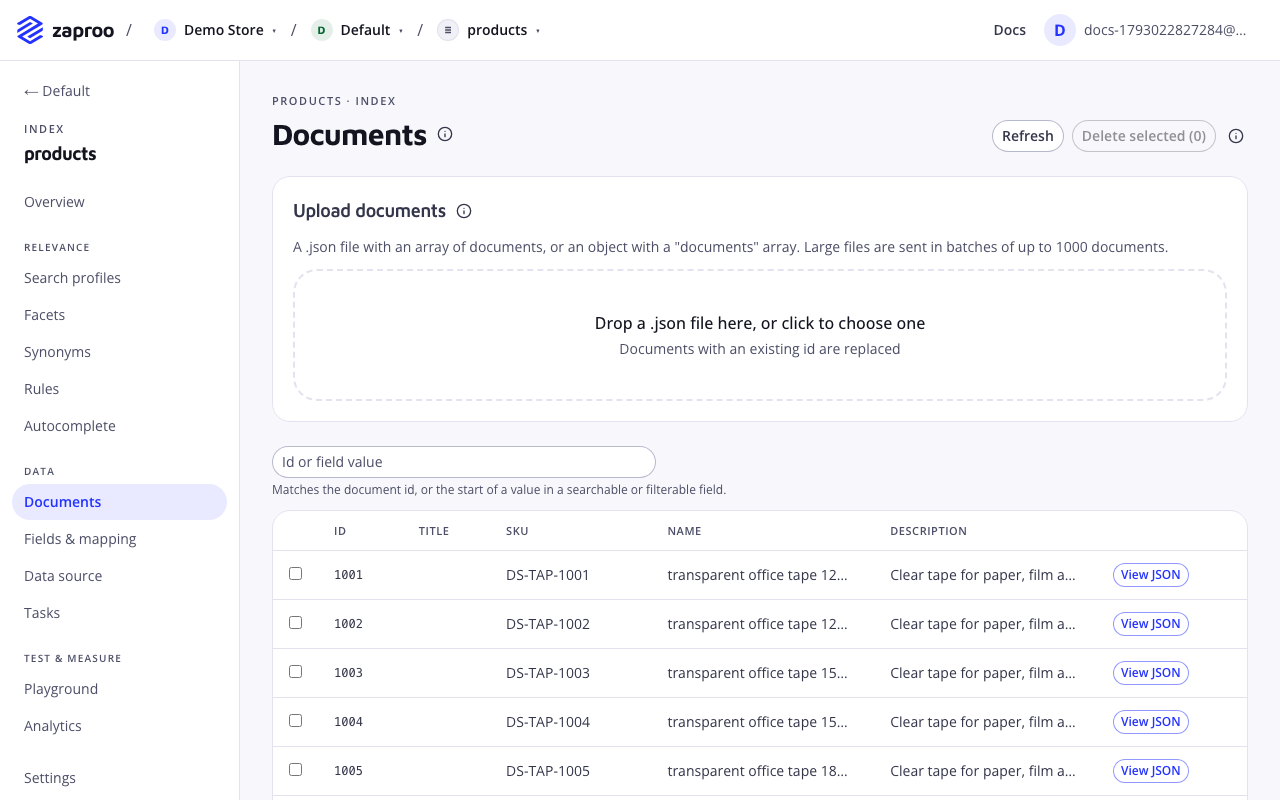
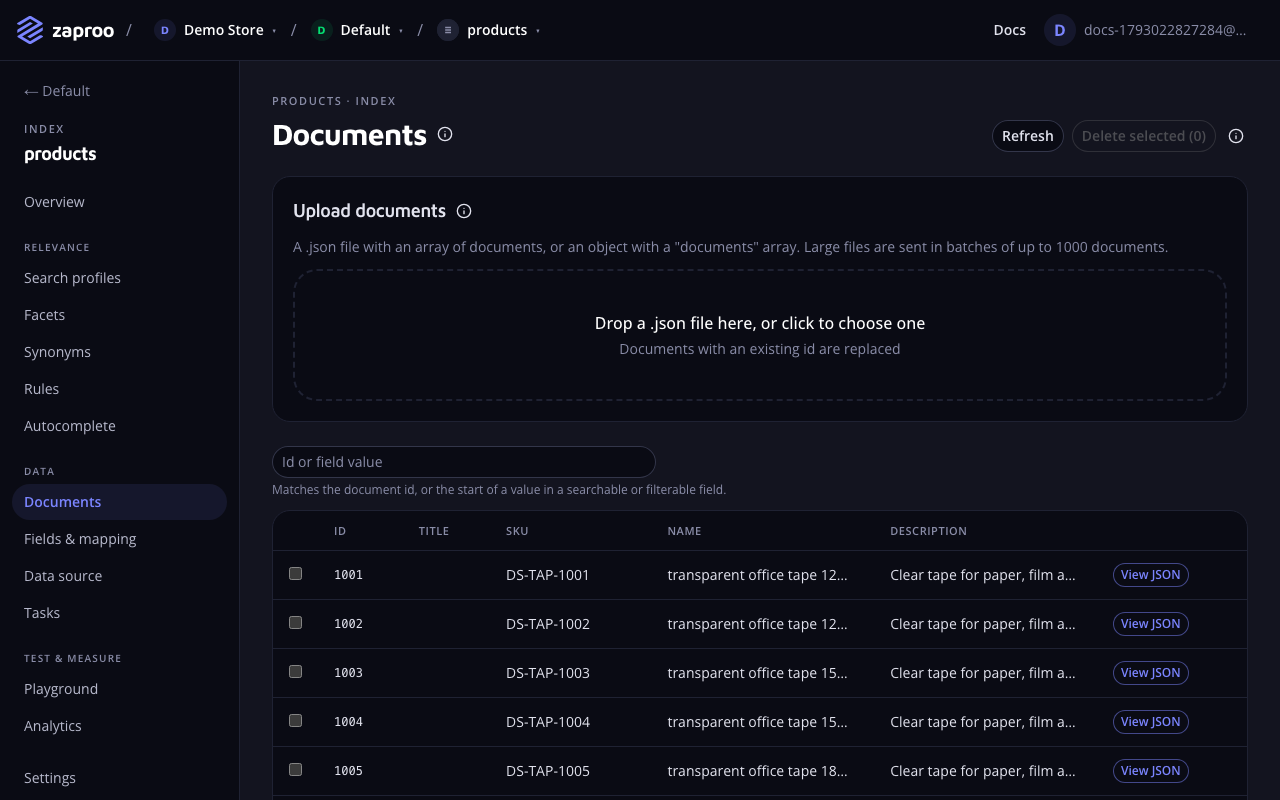 Drop a JSON file on the upload area
The file holds a JSON array of products. Each product needs an id; any other fields are up to you:
[
  { "id": "tape-48", "title": "Brown packaging tape 48mm", "color": "Brown", "price": 1.86, "categories": ["Tapes"] },
  { "id": "box-300", "title": "Cardboard box 300x200x200mm", "color": "Brown", "price": 0.32, "categories": ["Boxes"] }
]
The cabinet sends large files in batches and shows a progress row for each batch. A product becomes searchable as soon as its batch is done. If a batch fails, the row lists the products at fault, and you can upload the same file again safely. See Documents and tasks.
Check the fields
Open Fields & mapping. The first upload adds every field it finds and guesses its type. Each field's badges show what the field can be used for.
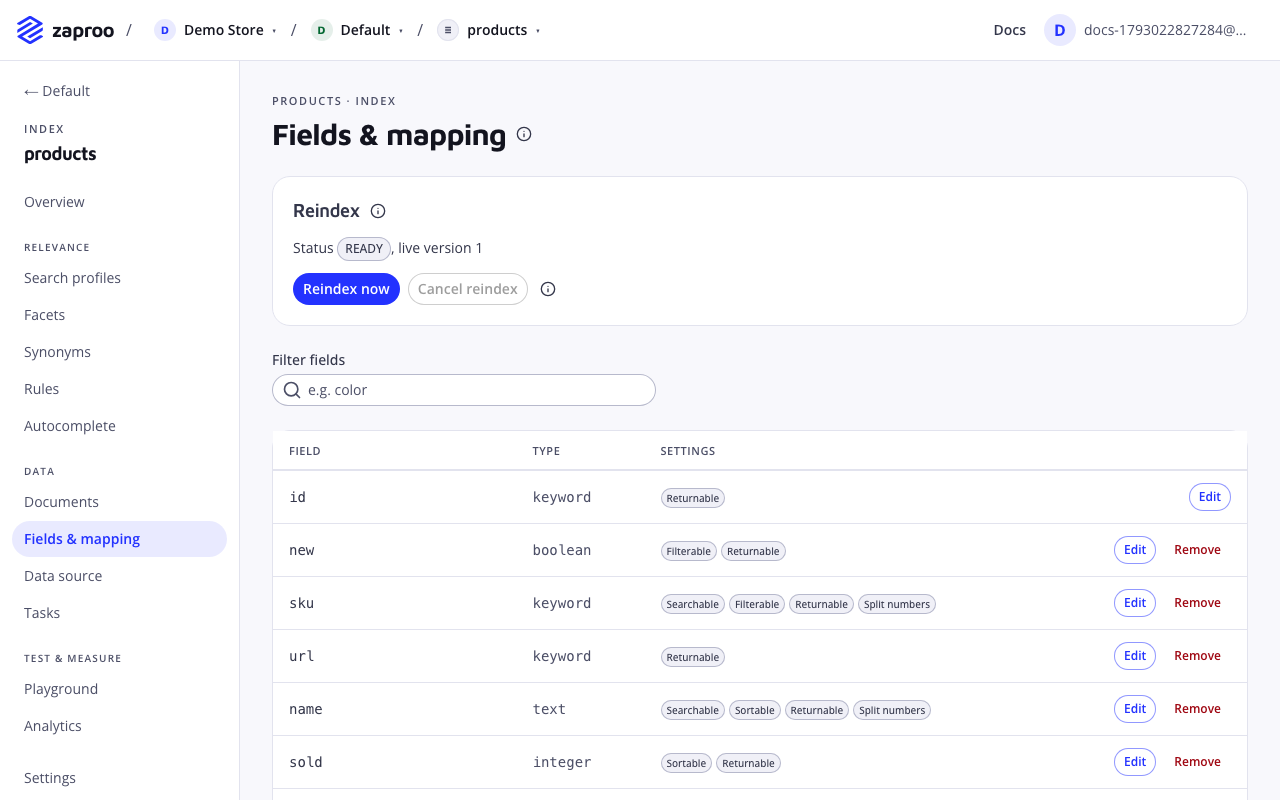
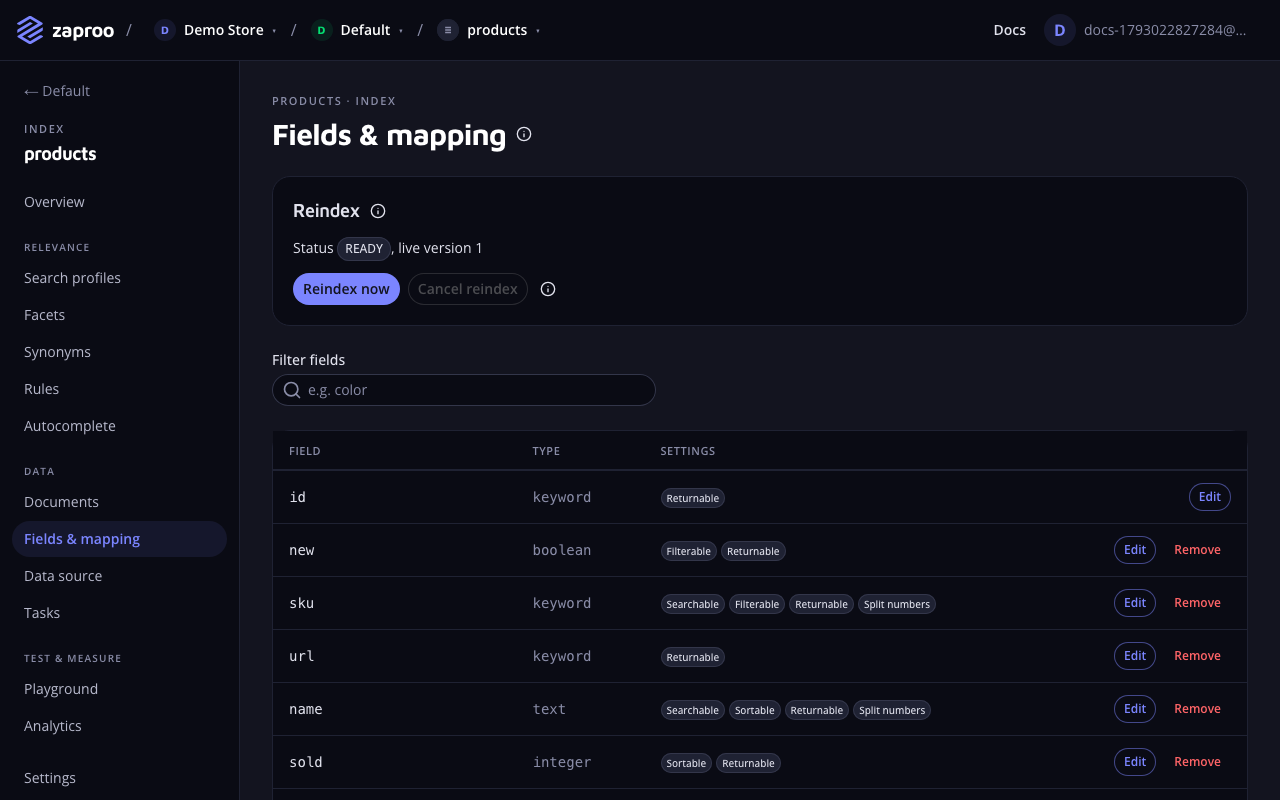 Each field shows its type and what it may be used for
Click Edit on a field to change what it does:
- Searchable for text that shoppers type, such as the title and description.
- Filterable and Facetable for the filters next to the results, such as color, category and price.
- Sortable for sort orders, such as price.
Click Apply to keep the change, then Save mapping when you are done. Some changes need a rebuild of the index, and the page tells you when they do. See Mapping and fields.
Create a search profile
A search profile decides how one search box searches: which fields count most, which facets show and how results can be sorted. Open Search profiles and click New profile.
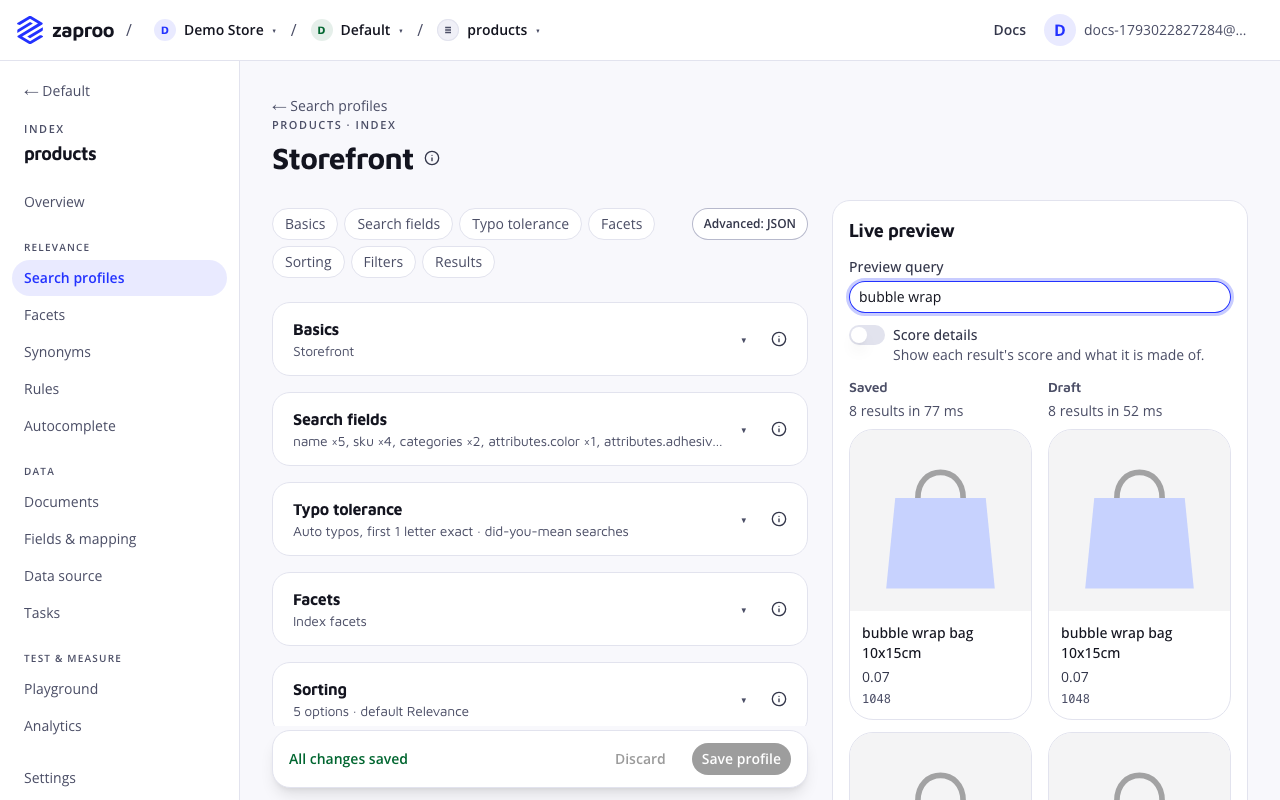
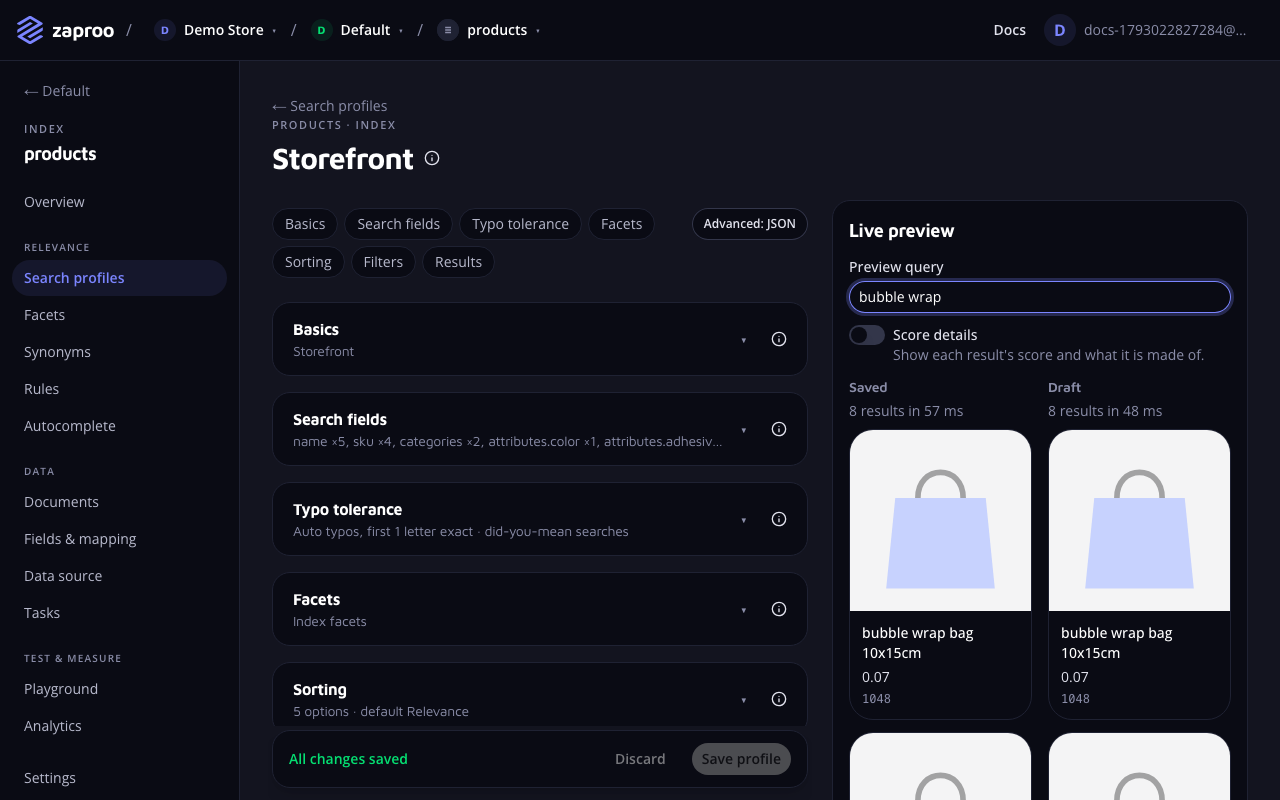 The preview on the right shows how the draft settings change the results
- Under Basics, name the profile after where it is used, for example
Storefront. - Under Search fields, add the fields to search and give the product title the highest weight.
- Under Facets and Sorting, pick the filters and the sort orders your shop shows.
- Type a query in the preview to see the results, then click Save profile.
The profile list shows each profile's key under its name. Your storefront sends searches to this key, and the key never changes.
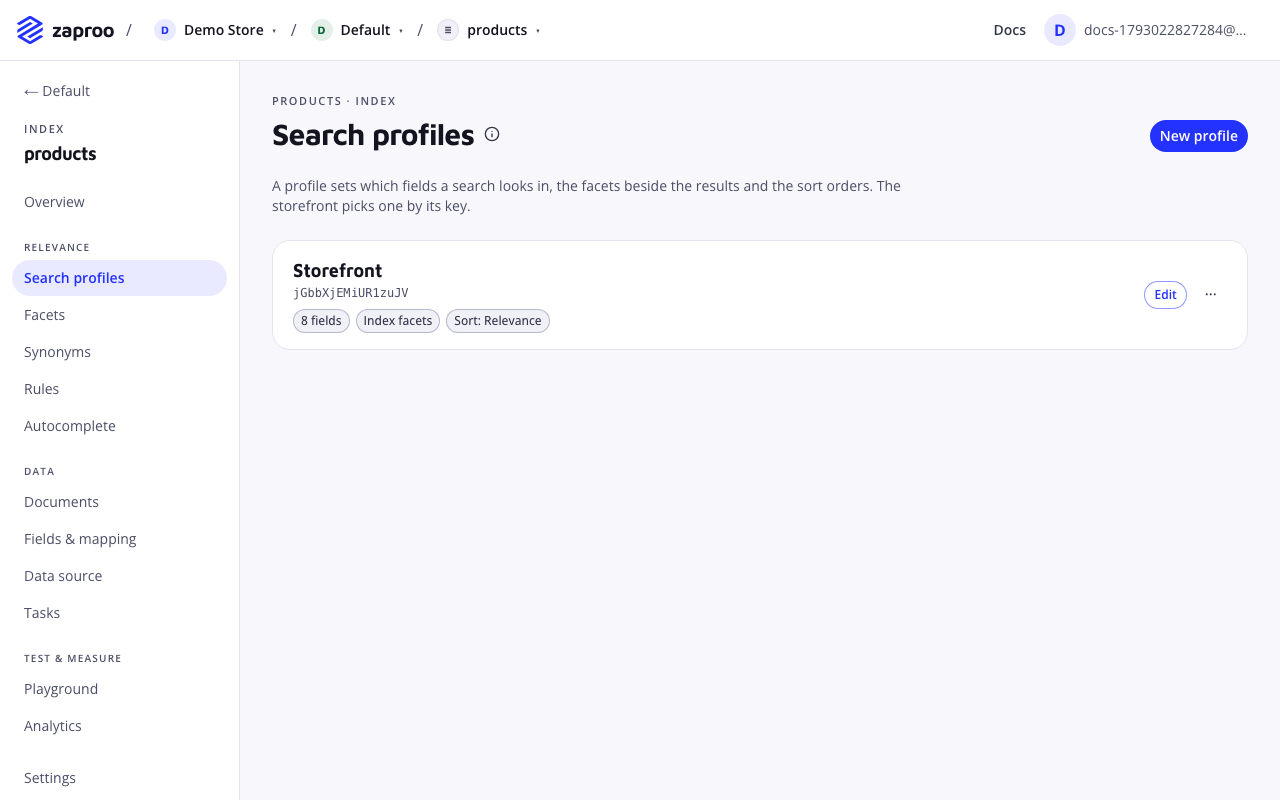
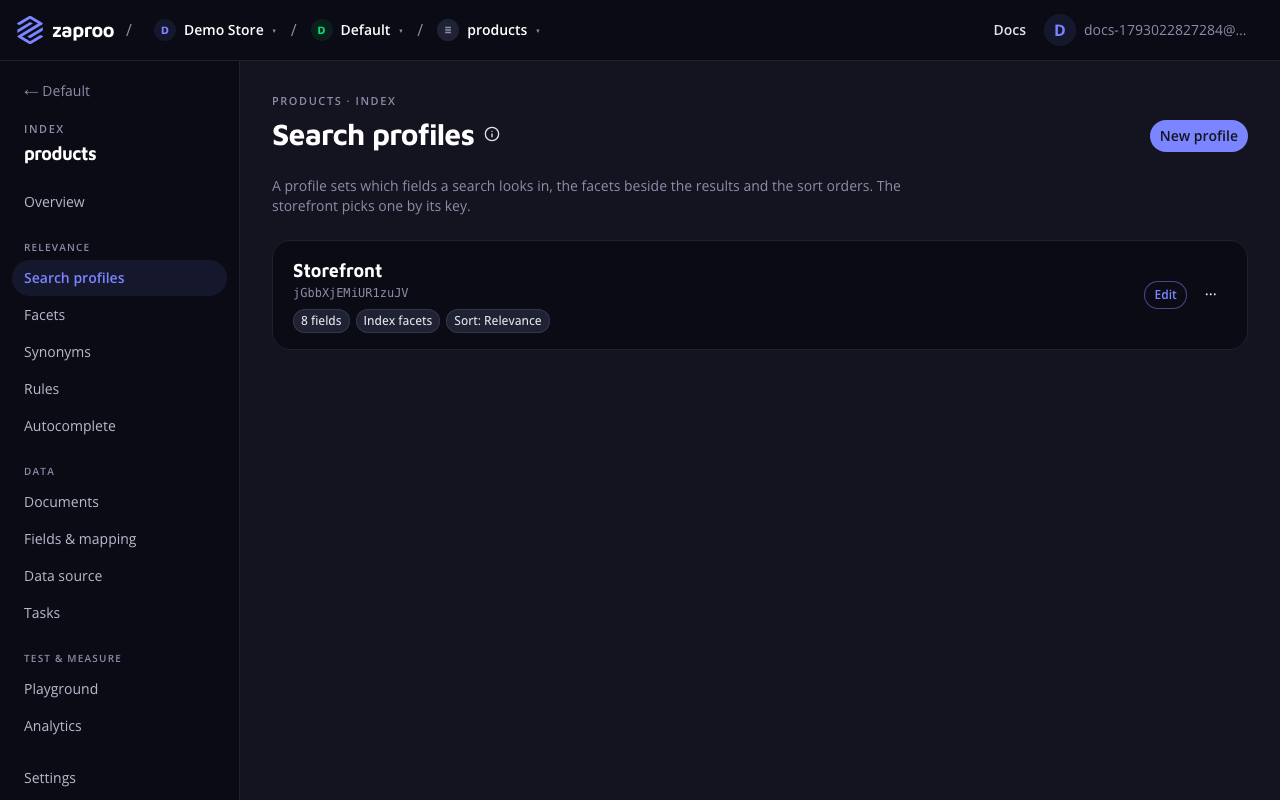 The profile key sits under the profile name
Every setting is explained in Search profiles.
Try a search
Open Playground, pick the profile and type what a shopper would type. You see the same results, facets and counts your storefront will get.
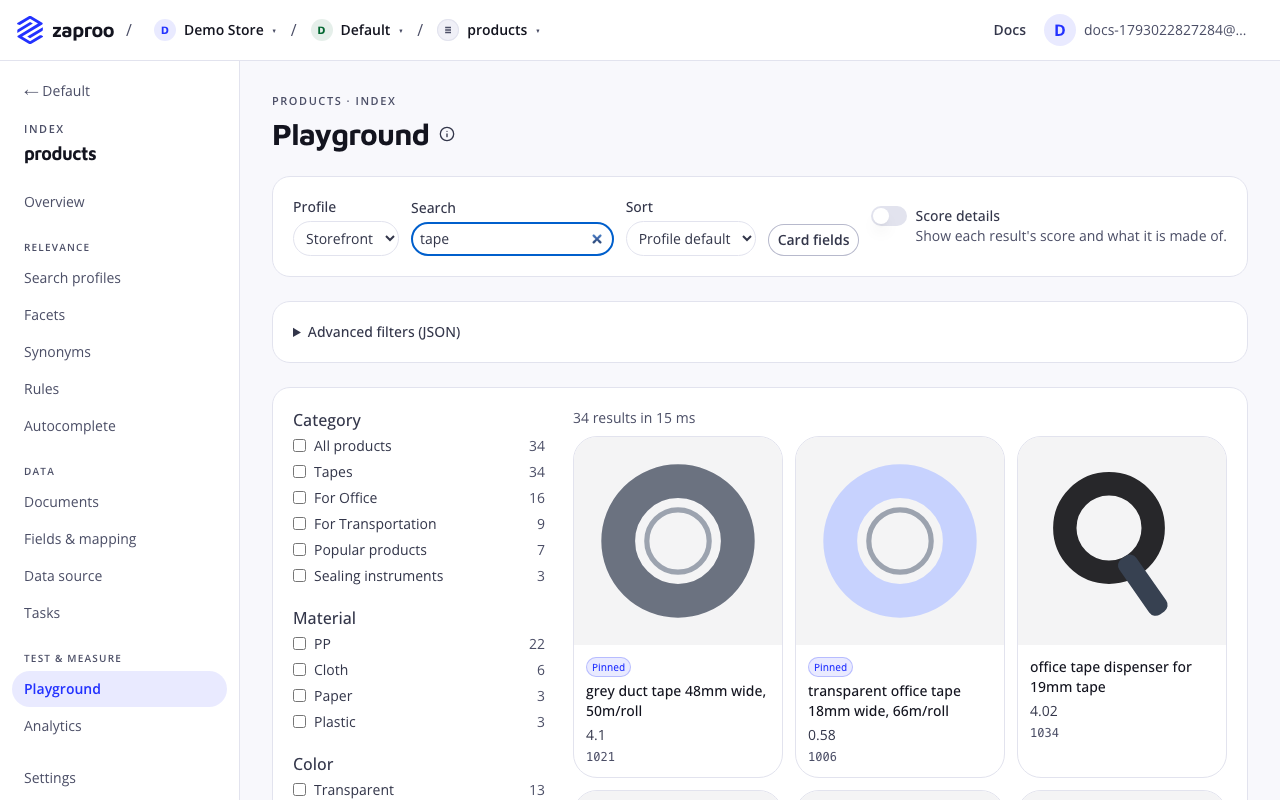
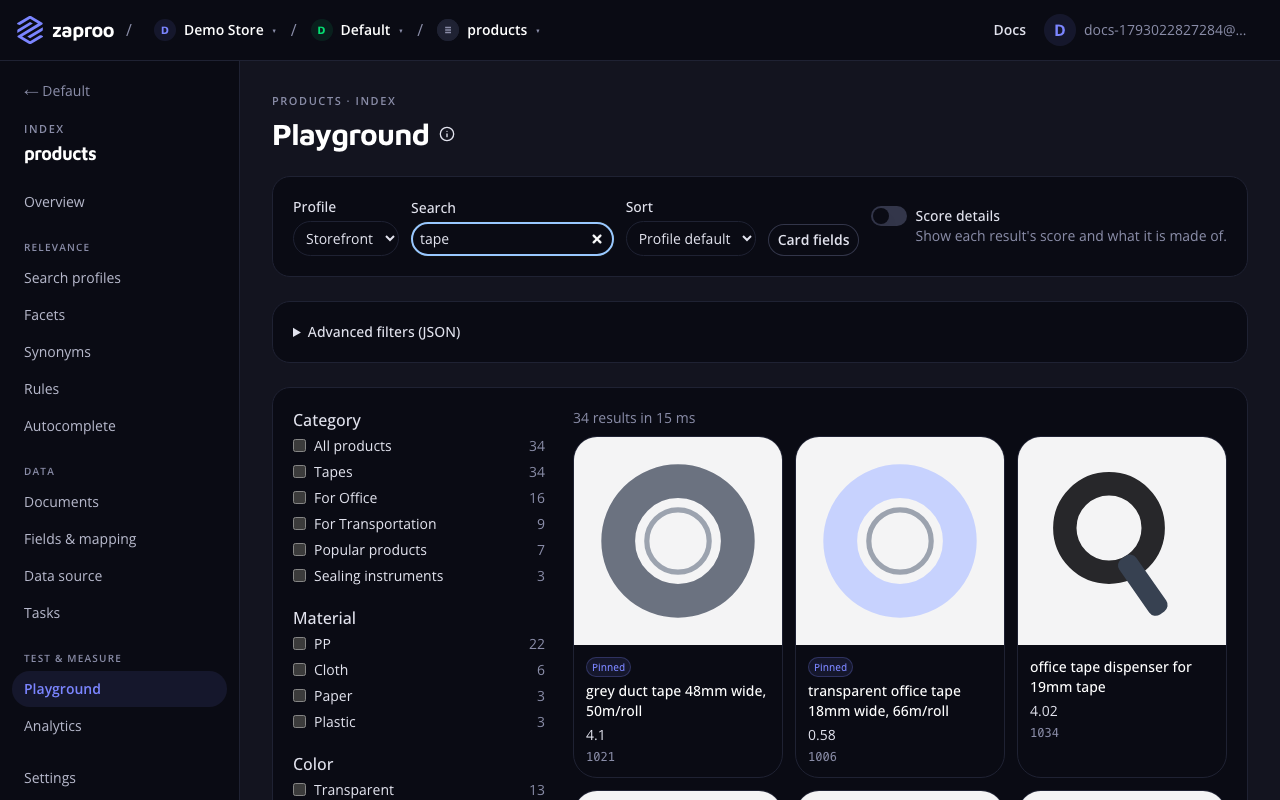 The Playground searches with a profile, as your storefront will
If a product you expect is missing, check that its field is Searchable and listed in the profile's search fields.
Create an API key for your site
Your storefront needs an API key to search. Open API keys in the project menu and click New key.
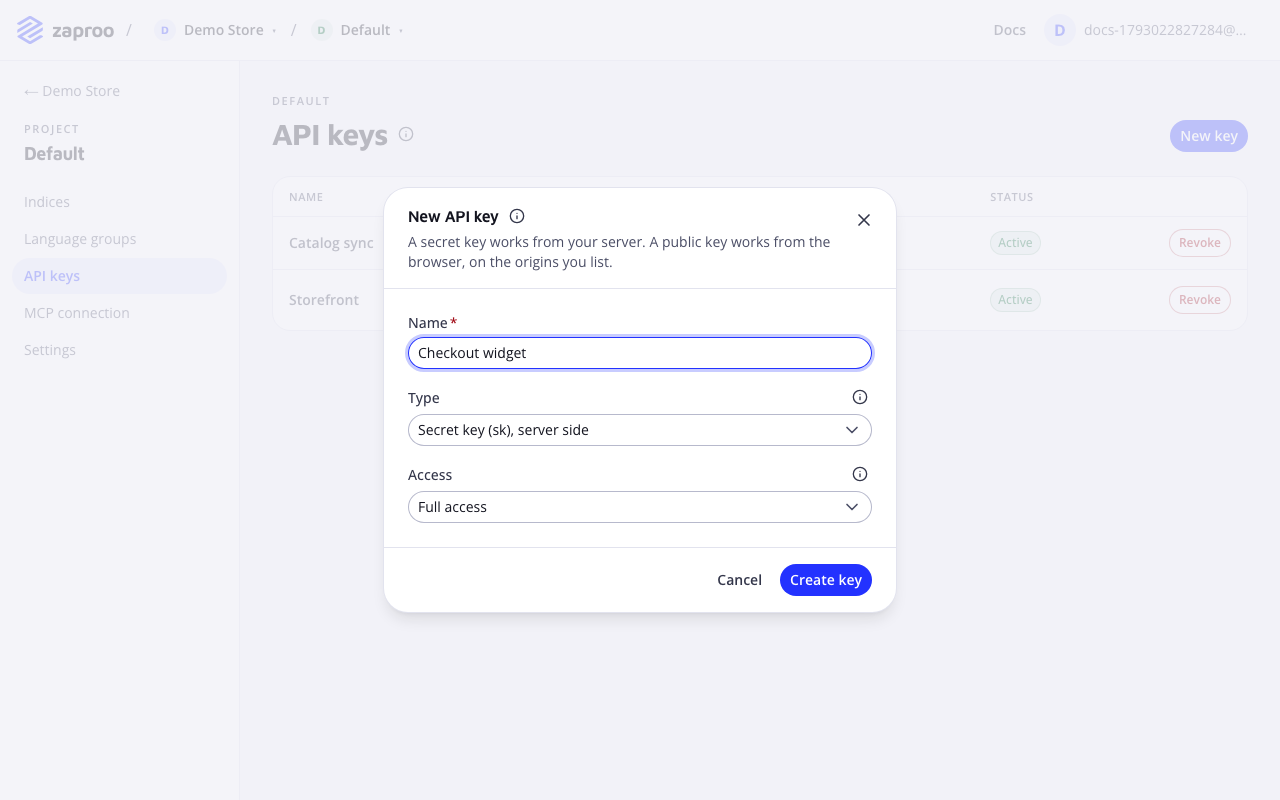
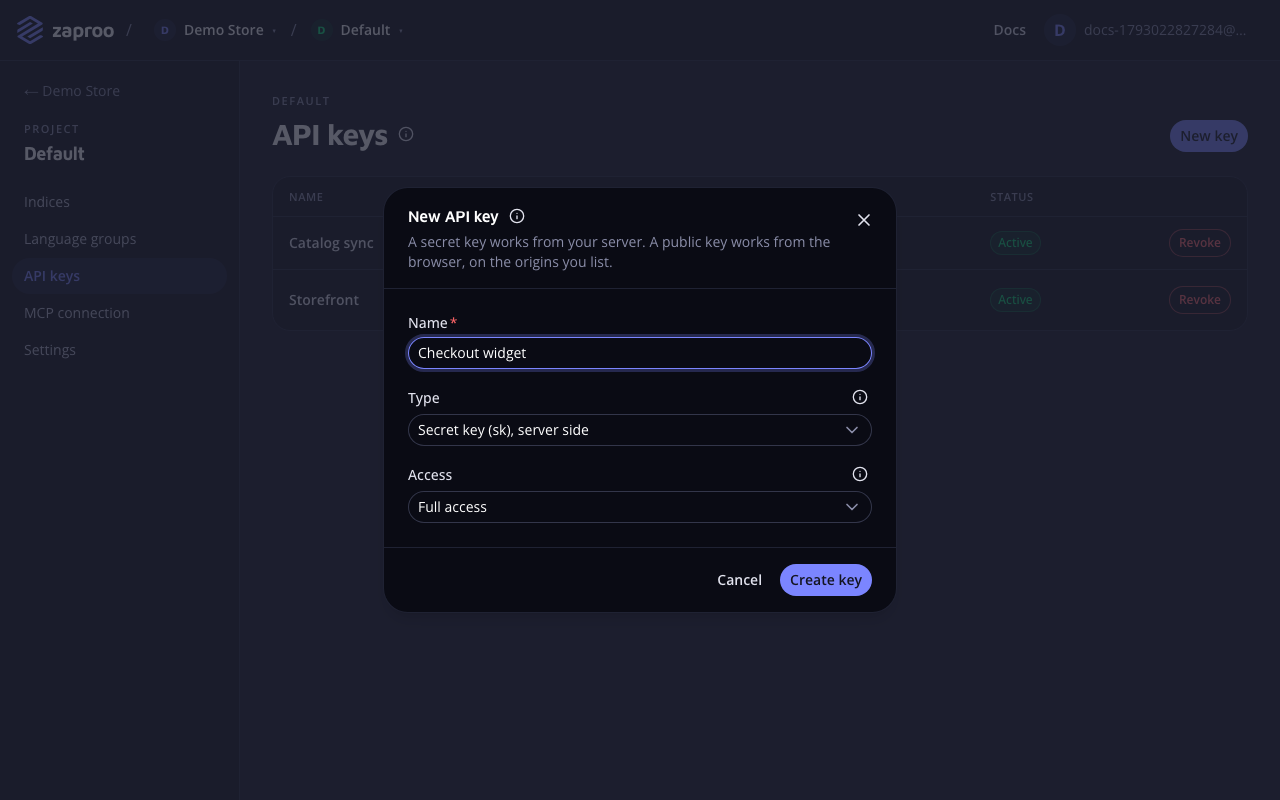 A public key for the browser, a secret key for your servers
- For search in the shopper's browser, pick Public key. Under Allowed origins, enter your shop's domain, for example
shop.example.com. A public key can only search and suggest, and only from the domains you list, so it is safe in frontend code. - For search from your shop's server, or for a catalog import, pick Secret key. Keep it on the server.
Click Create key. The full key is shown only once, so copy it into your code or secret store before you close the dialog. Creating keys needs a verified email and the owner or admin role. See API keys.
The search is ready. Integrate a storefront shows how your shop's search page, facets and autocomplete box call it.
What to set up next
- Autocomplete: suggestions as the shopper types, with its own preview on the Autocomplete page.
- Synonyms: make "scotch" find tape and "carton" find boxes.
- Ranking rules: pin or boost products for chosen searches.
- Search analytics: see what shoppers search for and which searches find nothing.
- Members: invite your team.
With the API
Every step above has an API route, and the routes follow the same rules and limits as the cabinet. Use them to automate the setup, for example from a deploy script.
You need a secret key with full access, created in the cabinet as in the last step. A key cannot create other keys, so this one step always happens in the cabinet. Copy the project id from the cabinet URL, /app/p/<project id>/….
export PROJECT_ID=<project id>
export ZS_KEY=zs_sk_...
Create the index. The answer holds its id:
/v1/projects/:projectId/indicesSecret key with full accesscurl -X POST https://api.search.zaproo.cloud/v1/projects/$PROJECT_ID/indices \
-H "Authorization: Bearer $ZS_KEY" -H "Content-Type: application/json" \
-d '{"name": "products", "language": "english"}'
Upload products. The body is a bare JSON array of up to 1000 products. The API answers 202 with a task id, and the writing happens in the background:
/v1/projects/:projectId/indices/:indexId/documentsSecret key with full accessexport INDEX_ID=<index id>
curl -X POST https://api.search.zaproo.cloud/v1/projects/$PROJECT_ID/indices/$INDEX_ID/documents \
-H "Authorization: Bearer $ZS_KEY" -H "Content-Type: application/json" \
-d '[
{"id": "tape-48", "title": "Brown packaging tape 48mm", "color": "Brown", "price": 1.86},
{"id": "box-300", "title": "Cardboard box 300x200x200mm", "color": "Brown", "price": 0.32}
]'
# 202 {"taskId": "..."}
Poll the task until its status is SUCCEEDED. PARTIAL means some products failed, and the task's errors say which ones and why.
/v1/projects/:projectId/tasks/:taskIdSecret keycurl https://api.search.zaproo.cloud/v1/projects/$PROJECT_ID/tasks/$TASK_ID -H "Authorization: Bearer $ZS_KEY"
Create a search profile. The answer holds its profileKey:
/v1/projects/:projectId/indices/:indexId/profilesSecret key with full accesscurl -X POST https://api.search.zaproo.cloud/v1/projects/$PROJECT_ID/indices/$INDEX_ID/profiles \
-H "Authorization: Bearer $ZS_KEY" -H "Content-Type: application/json" \
-d '{
"name": "Storefront",
"queryFields": {"title": 3, "color": 1},
"facets": [{"type": "terms", "field": "color"}],
"sortOptions": ["_relevance", "price:asc", "price:desc"]
}'
Search:
POST/v1/search/:profileKeyPublic key from an allowed origin, or a secret keycurl -X POST https://api.search.zaproo.cloud/v1/search/$PROFILE_KEY \
-H "Authorization: Bearer $ZS_KEY" -H "Content-Type: application/json" \
-d '{"q": "tape", "filters": {"color": ["Brown"]}, "page": 1}'
The answer holds items, total, facets with counts, and correctedQuery when a typo was corrected. Every route is listed in the REST API reference.
With an AI agent
Every step except creating the key is also an MCP tool. Connect Claude Code or another MCP client with a secret key (see MCP setup) and ask in plain words:
Create an index called products in English, upload the documents in ./catalog.json,
wait for the task to finish, then create a search profile that searches title and color
with a color facet, and search for "tape".
The agent calls create_index, index_documents, get_task, upsert_profile and search for you. The results show up in the cabinet like anything you set up by hand.
Languages
An index has one language. Pick it when you create the index:
| Language | language | Analysis |
|---|---|---|
| English (US) | english | Stemming and stop words |
| Bulgarian | bulgarian | Stemming and stop words |
| Croatian | croatian | Basic matching: no word-form reduction |
| Danish | danish | Stemming and stop words |
| Dutch | dutch | Stemming and stop words |
| Estonian | estonian | Stemming and stop words |
| Finnish | finnish | Stemming and stop words |
| French | french | Stemming and stop words |
| German | german | Stemming and stop words |
| Greek | greek | Stemming and stop words |
| Hungarian | hungarian | Stemming and stop words |
| Italian | italian | Stemming and stop words |
| Latvian | latvian | Stemming and stop words |
| Norwegian | norwegian | Stemming and stop words |
| Polish | polish | Stemming and stop words |
| Portuguese | portuguese | Stemming and stop words |
| Romanian | romanian | Stemming and stop words |
| Russian | russian | Stemming and stop words |
| Serbian | serbian | Stemming and stop words |
| Slovenian | slovenian | Basic matching: no word-form reduction |
| Spanish | spanish | Stemming and stop words |
| Swedish | swedish | Stemming and stop words |
| Language-neutral | standard | Basic matching: no word-form reduction |