Organizations, members and roles
What an organization is
An organization is the account your team shares. It holds the members and their roles, the projects, the plan and the invoices. Registering creates one organization named after your company, with you as its only owner.
You can belong to several organizations, for example your own shop and a client's. Each one appears on the Account page under Organizations, with your role in it. To switch between them, use the organization menu at the start of the breadcrumb at the top of the cabinet. To join another organization, ask one of its owners to add you.
An organization's sidebar has three pages: Projects, Members and Billing & usage. See Projects and Plans and billing.
With the API:
GET/v1/orgsSigned-in userGET/v1/orgs/:orgIdAny member of the organizationAn organization you do not belong to answers 404 ORG_NOT_FOUND, the same as one that does not exist.
Roles
Each member has one role in the organization: OWNER, ADMIN or MEMBER. The role applies to every project of the organization. A higher role can do everything a lower role can.
- Owner: manages the members and their roles, and does everything an admin does.
- Admin: creates projects and API keys, changes indices, documents and search settings, and changes the plan.
- Member: sees everything and can try searches in the cabinet, but changes nothing.
In the cabinet, buttons for actions your role does not allow are off or hidden, and the page says who can use them, for example "Only organization owners can manage members."
What each role may do
This table follows the access rules of the API routes. API keys are listed too. A key belongs to one project and never reaches the organization's members, billing or keys.
| Action | Member | Admin | Owner | Read key | Full key |
|---|---|---|---|---|---|
| See the organization, its projects and its members | yes | yes | yes | no | no |
| See the plan, usage and invoices | yes | yes | yes | no | no |
| Change the plan | no | yes | yes | no | no |
| Create a project | no | yes | yes | no | no |
| Add members, change roles, remove members | no | no | yes | no | no |
| See the project's API keys (name and prefix only) | yes | yes | yes | no | no |
| Create and revoke API keys | no | yes | yes | no | no |
| Read indices, mappings, documents, tasks, profiles, synonyms, rules, autocomplete and analytics | yes | yes | yes | yes | yes |
| Search, suggest and test rules in the cabinet | yes | yes | yes | yes | yes |
| Create and delete indices, change mappings and facets, reindex | no | yes | yes | no | yes |
| Upload and delete documents, run a full catalog sync | no | yes | yes | no | yes |
| Create, change and delete profiles, synonyms, rules and suggestions | no | yes | yes | no | yes |
A route that your role does not allow answers 403 FORBIDDEN. Creating API keys also needs a verified email, see Verify your email.
Members
Open your organization and click Members in the sidebar. The page lists everyone in the organization with their email and role. Only owners can change the roles, use the Remove buttons and add members.
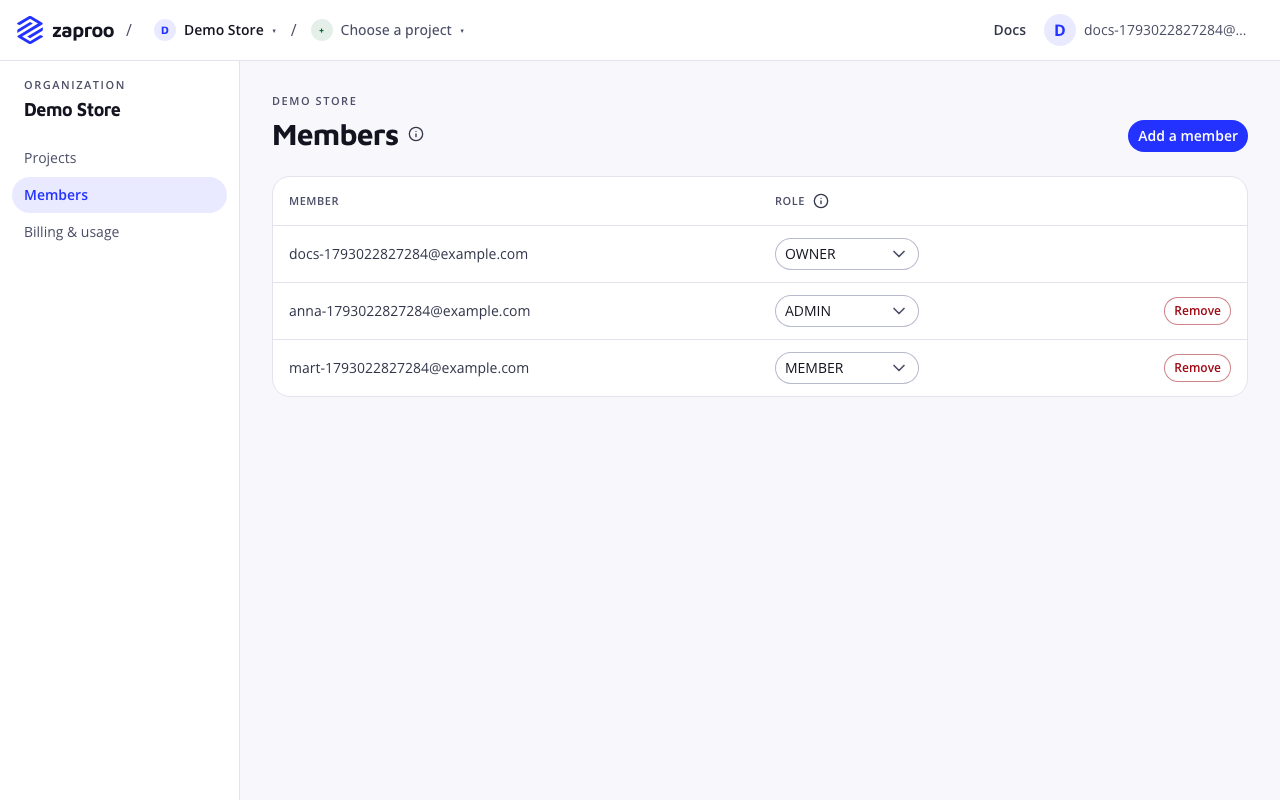
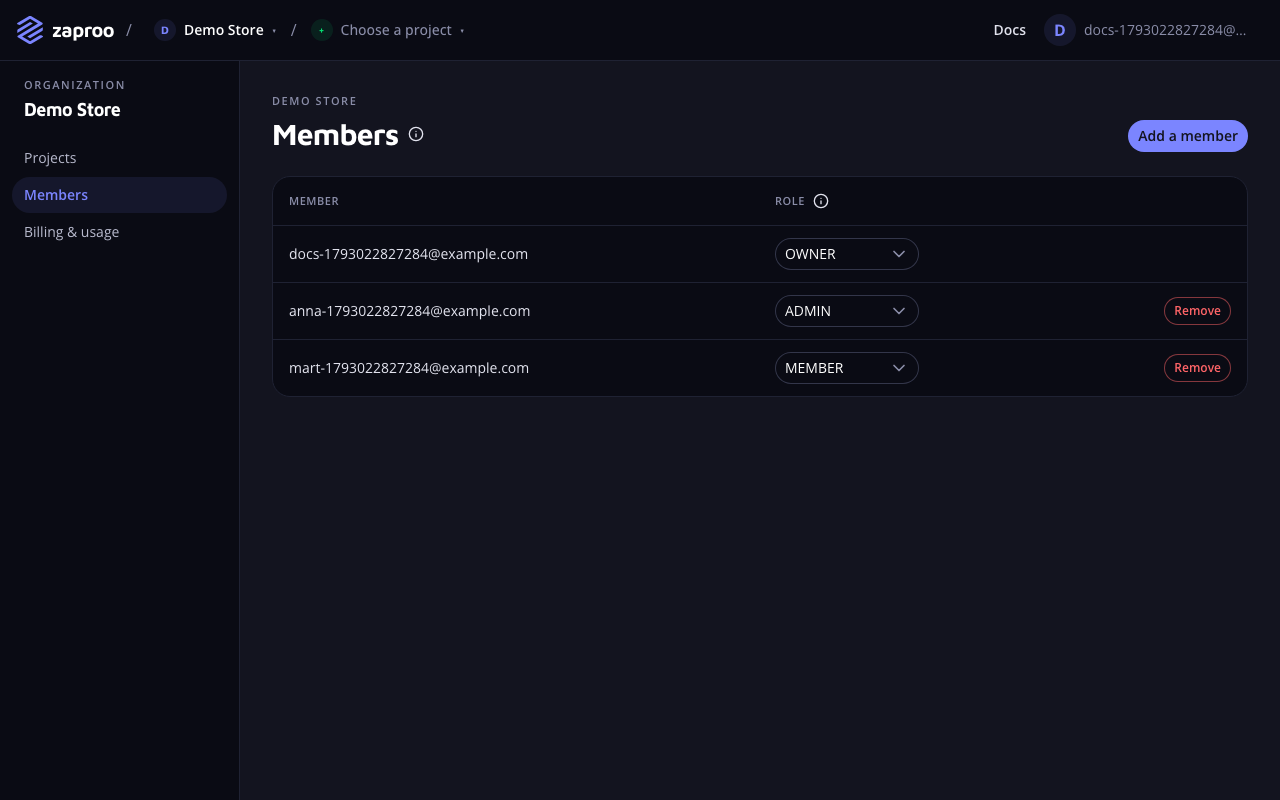 Members and their roles
With the API:
GET/v1/orgs/:orgId/membersAny member of the organizationAdd a member
On Members, click Add a member. Enter the person's Email, pick a Role (it starts at MEMBER) and click Add member. The person needs a Zaproo account already, because there are no email invitations yet. Ask them to register first. Their registration creates an organization of their own, which they can ignore. They also need to verify their email before you can add them.
With the API:
POST/v1/orgs/:orgId/membersOwner, not while support is acting as youcurl -X POST https://api.search.zaproo.cloud/v1/orgs/$ORG_ID/members \
-H "Authorization: Bearer $ACCESS_TOKEN" -H "Content-Type: application/json" \
-d '{"email": "anna@shop.example.com", "role": "ADMIN"}'
An email without an account answers 404 USER_NOT_FOUND. A person who is already a member answers 409 ALREADY_MEMBER. A person who has not verified their email yet answers 409 USER_NOT_VERIFIED.
Change a role
On Members, pick the new role in the member's row. The change is saved at once and applies to the member's next request.
With the API:
PUT/v1/orgs/:orgId/members/:userIdOwner, not while support is acting as youRemove a member
On Members, click Remove in the member's row. There is no confirmation step. The person loses access to every project of the organization at once. The API keys they created keep working, because keys belong to the project, not to a person. Revoke those keys on the project's API keys page if the person should lose that access too. You cannot remove yourself, so your own row has no Remove button.
With the API:
DELETE/v1/orgs/:orgId/members/:userIdOwner, not while support is acting as youKeep at least one owner
An organization always has at least one owner. Demoting or removing the last owner answers 409 LAST_OWNER. To hand the organization over, make the new person an owner first, then change your own role.
Seats
Each plan includes a number of seats, one per member. The Free plan has 2. When the organization reaches 80% and 100% of its seats, the owners and admins get an email and the cabinet shows a usage banner. Adding a member over the limit still works. The plan cards on Billing & usage and Plans and billing list the seats of each plan.
Common mistakes
- Giving everyone the owner role. Owners can remove other owners. Give the admin role to people who build search, and keep two owners, so the organization never depends on one person.
- Removing a member and forgetting their keys. Revoke the keys that person used in scripts and servers.
- Adding a person before they registered. The API answers
404 USER_NOT_FOUND. Ask them to register first. Until they confirm the email link, the API answers409 USER_NOT_VERIFIED.