Account and sign-in
Your account
Your account is your email and password. It signs you in to the cabinet, where you work in the organizations you belong to. Programs never use your password. They use API keys.
To see your account, click your avatar at the top right of the cabinet and pick Account. The page shows your Email, your Name, your Email status, your Organizations with your role in each, your Signed-in devices and the Change password form.
With the API, the same data comes from:
GET/v1/auth/meSigned-in userThe answer is your user with emailVerified and the list of your organizations with your role in each.
Create an account
Open Create your account. Enter your Email, a Password of at least 10 characters and your Company. Your name is optional. Click Create account.
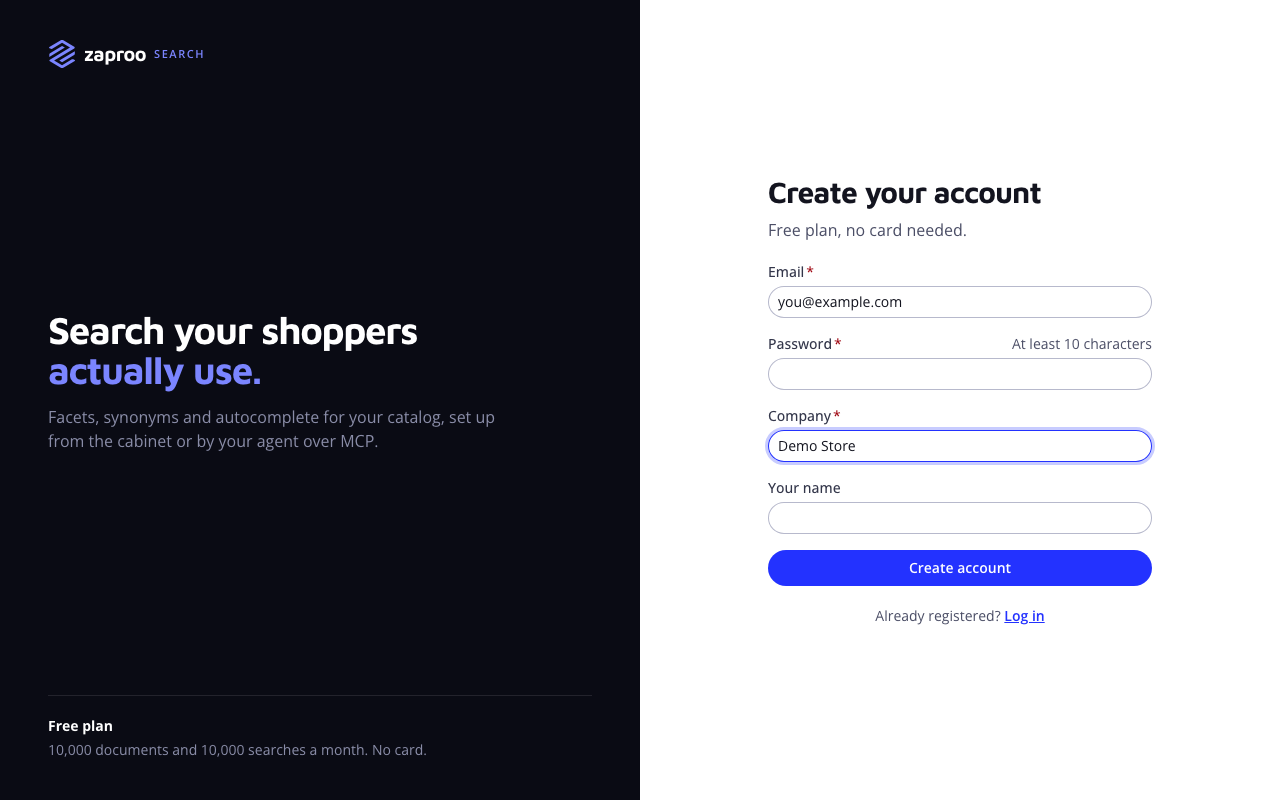
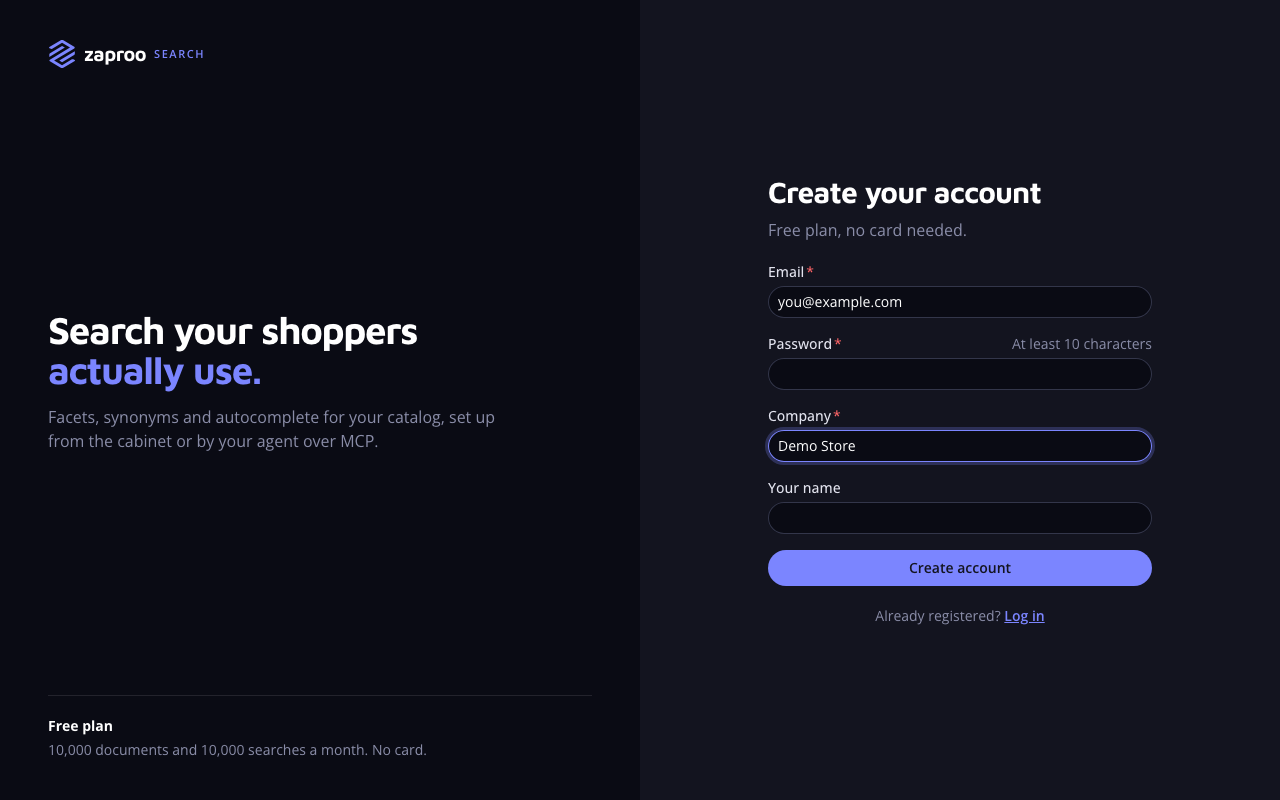 Registration takes an email, a password and a company name
Registration does four things at once:
- Creates your user and signs you in.
- Creates an organization named after your company, with you as its owner.
- Creates a project called Default in that organization.
- Puts the organization on the Free plan and sends you a verification email.
An email can have one account. Registering an email that already has one answers 409 EMAIL_TAKEN. Emails are stored in lower case, so Anna@Shop.example.com and anna@shop.example.com are the same account.
With the API:
POST/v1/auth/registerAnyoneVerify your email
The verification email holds a link that is valid for 24 hours and works once. Until you open it, the cabinet shows a Verify your email banner, and you cannot create API keys. Everything else works.
- Click Resend email for a new link. You can ask for 3 links per minute.
- Click I verified it after you opened the link in another tab. It reloads your session, so the banner goes away.
The link opens the Email verification page, which says Email verified or Could not verify. Account shows the result under Email status.
With the API:
GET/v1/auth/verify-email?token=...Anyone with the linkPOST/v1/auth/resend-verificationSigned-in userAn expired or already used link answers 400 INVALID_TOKEN. Ask for a new one with Resend email.
Sign in
Open the log-in page, enter your Email and Password and click Log in.
POST/v1/auth/loginAnyoneA wrong email or password answers 401 INVALID_CREDENTIALS. The answer is the same for an unknown email, so nobody can find out which emails have an account.
Signing in gives the cabinet two tokens:
- An access token that is valid for 15 minutes. The cabinet sends it with every request.
- A refresh token in an HttpOnly cookie that is valid for 30 days. The cabinet trades it for a new access token before the old one runs out. Each trade replaces the refresh token too.
You stay signed in for 30 days after your last visit. If an old refresh token is used again after it was replaced, the API treats it as stolen. It signs out that device and answers 401 REFRESH_TOKEN_REUSED. Sign in again.
Signed-in devices
Account, under Signed-in devices, lists every browser that is signed in to your account. Each row shows the browser, the IP address, when it signed in and when it was last active. (this device) marks the browser you are using.
To sign out another device, click Sign out in its row. That device can no longer refresh its session. Its current access token keeps working until it expires, at most 15 minutes later. To sign out the browser you are using, click Log out at the bottom of Account, or in the avatar menu.
With the API:
GET/v1/auth/sessionsSigned-in userDELETE/v1/auth/sessions/:familyIdSigned-in user, not while support is acting as youPOST/v1/auth/logoutThe browser that holds the refresh cookieChange your password
Open Account. Under Change password, enter your Current password and a New password of at least 10 characters, then click Change password. Changing the password signs out every other device. The browser you are using stays signed in.
With the API:
POST/v1/auth/change-passwordSigned-in user, not while support is acting as youA wrong current password answers 400 WRONG_PASSWORD.
Reset a forgotten password
- On the log-in page, click Forgot password?.
- Enter your Email and click Send reset link.
- Open the link in the email. It is valid for 1 hour and works once.
- Enter a New password of at least 10 characters and click Update password. Then click Go to log in and sign in.
Resetting the password signs out every device, including the one you use.
With the API:
POST/v1/auth/forgot-passwordAnyonePOST/v1/auth/reset-passwordAnyone with the linkThe forgot-password request always answers 202, whether the email has an account or not. If no email arrives, check the address and your spam folder. You can ask for 5 reset emails per minute from one IP address.
Support access
When you ask Zaproo support for help, a support engineer can open your cabinet as you for up to 30 minutes. A banner shows while they do. While they act as you, they cannot change your password, sign out your devices, create API keys or change members. Every support session is recorded in the audit log.
Common mistakes
- Waiting for a verification email that went to spam. The banner's Resend email sends a fresh link. The old link stops working only when it expires.
- Sharing one account across a team. Add each person as a member instead. See Organizations, members and roles.
- Using your password in scripts. Create an API key for every program, so you can revoke it without changing your password.