Product feed
How it works
Your shop publishes its full catalog at a URL, as CSV, TSV, JSON, JSON Lines or XML, gzipped or not. Google Shopping feeds work as they are. Zaproo downloads the feed on a schedule, writes new and changed products, and deletes the products that left the feed. You write no sync code.
In the cabinet this is called a data source. Each index has at most one. Only organization owners and admins can set it up.
Set it up
Publish the feed
Most shop platforms can export a product feed, either built in or through a feed or Google Shopping extension. The feed must hold the whole catalog every time, because a product missing from it counts as deleted. If the URL needs a login, Zaproo supports Basic and header authentication.
Give the index a mapping
Create an index, then add its fields on Fields & mapping, or upload a sample file on Documents first and let Zaproo infer them. The data source writes into these fields. Until the index has fields, the Data source page shows Map the fields first.
Enter the feed
Open the index and click Data source in the menu. Enter the Feed URL and pick the Format. For CSV, also pick the Delimiter and Encoding; for JSON and XML, the Item path. If the feed needs a login, pick it under Authentication.
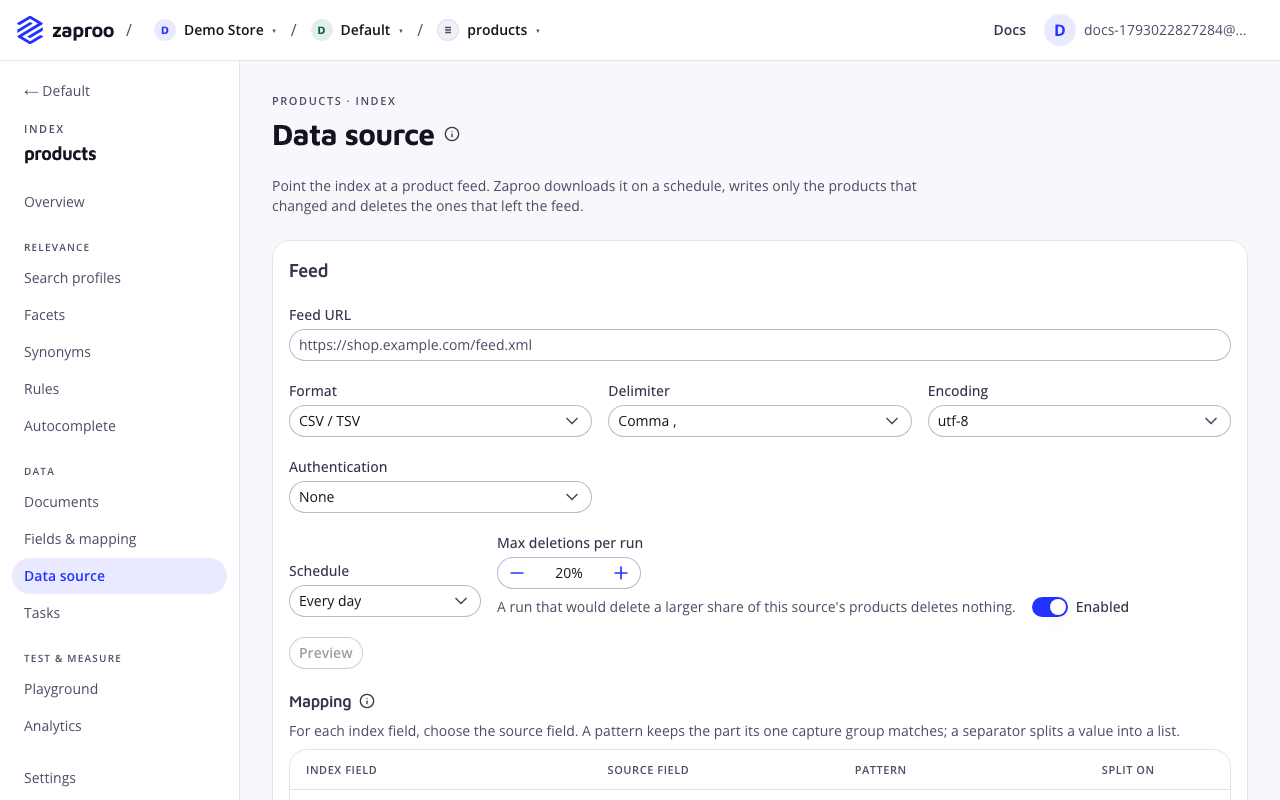
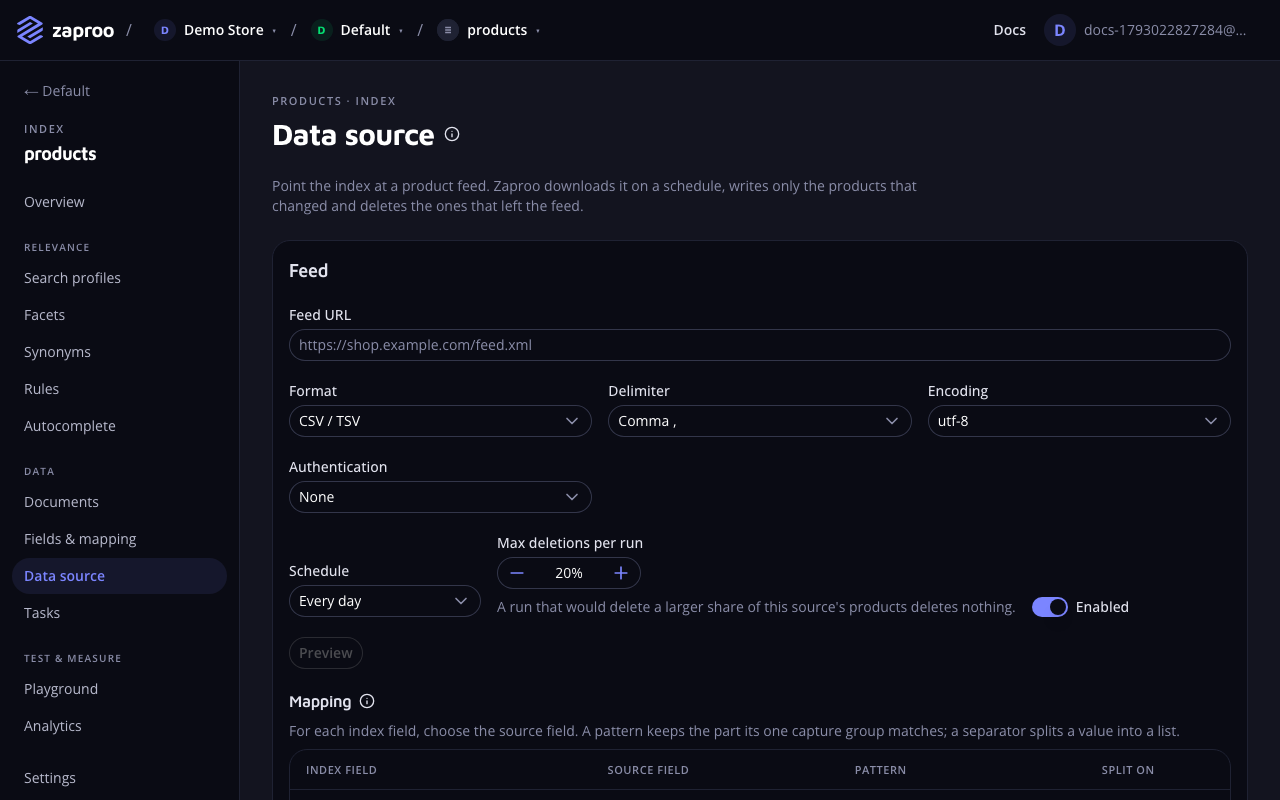 The feed settings sit above the field mapping
Map the fields
Click Preview. Zaproo reads the first items of the feed and lists the fields it found under Source fields, with sample values. In the Mapping table, pick the Source field for id and for each index field you want filled. Click Preview mapped documents to check the documents as they will be written.
Save
Pick the Schedule, leave Enabled on and click Save. The first run starts within a minute.
The Data source guide covers each step in detail: field patterns and splitting, authentication, the delete guard and the run log.
Manage it
All of this happens on the index's Data source page.
- Schedule. The plan sets the shortest interval: every day on Free, every 6 hours on Starter, every hour on Growth and every 15 minutes on Enterprise. Click Sync now to start a run at once.
- Run log. Under Run log, each run shows what it downloaded, created, updated, deleted and skipped, and why.
- Delete guard. A run that would delete more than the share set under Max deletions per run (20% by default), or that finds more than 10% invalid items, deletes nothing and ends as
GUARDED. New and changed products are still written. See The delete guard. - Pause. Switch Enabled off and click Save. After 10 failed runs in a row the data source turns itself off, and the page shows the last error.
- Remove. Click Delete, then Delete again to confirm. The documents it wrote stay in the index.
A data source is off while a platform module such as Magento 2 is linked to the index. See Integrations in the cabinet.
With the API, the same settings live on the index's feed routes. See the REST API reference and Data source.